

Overview
The Live Chat feature enables your team to manage real-time chat sessions and provide instant human support to users. It allows agents to monitor chat status, filter sessions, and actively respond to users when immediate assistance is required. This guide explains how to access live chats, filter sessions, and manage live conversations effectively.Accessing Live Chat
1
Open the Dashboard
- Log in to your dashboard
- Navigate to Live Chat from the main menu
2
View Live Chat Sessions
- The Live Chat page loads with available chat sessions
- Sessions are listed based on selected filters and date range
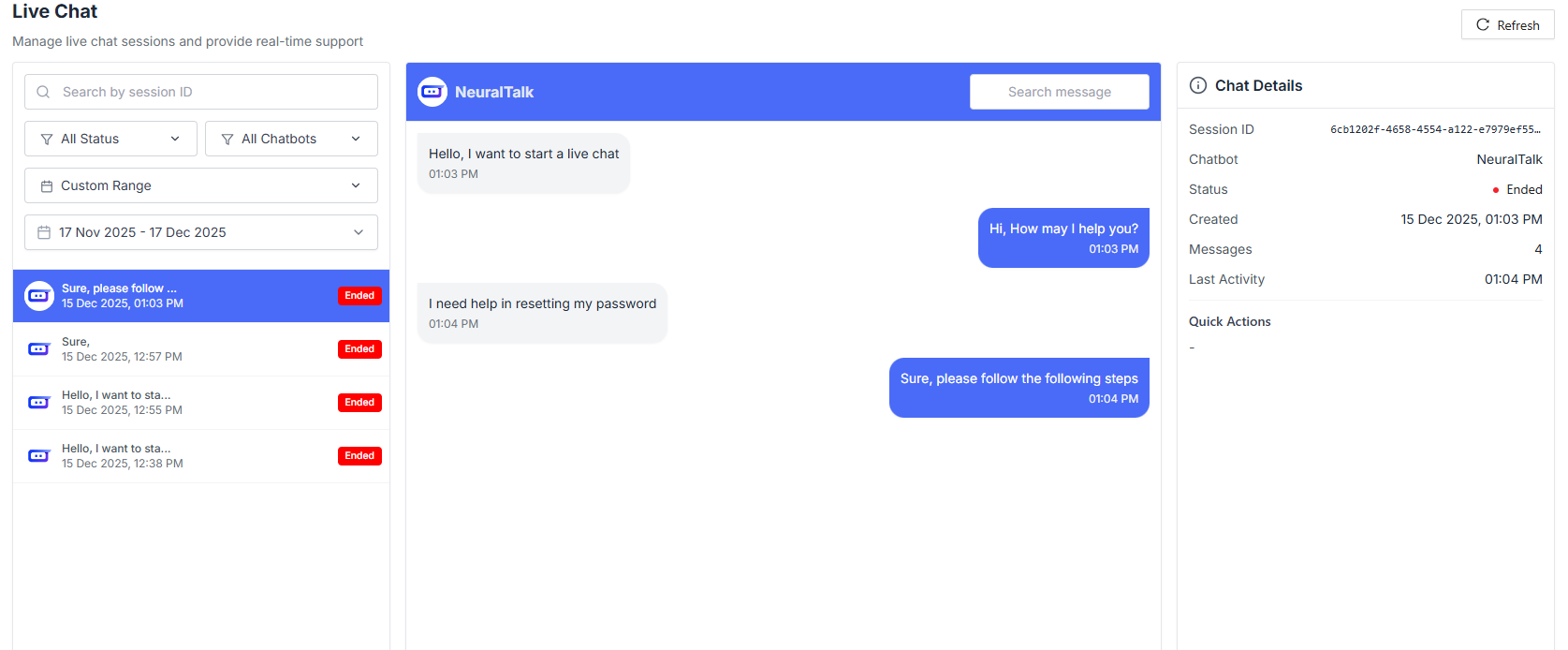
Live Chat Overview
The Live Chat is divided into multiple sections to help you manage conversations efficiently.Search & Controls
Use the top controls to refresh and search chat sessions.- Refresh: Click Refresh to reload the latest live chat sessions and statuses.
- Search by Session ID: Quickly locate a specific live chat by entering its unique session ID.
Status Filters
Filter live chat sessions based on their current status.- All Status: Displays all live chat sessions regardless of state.
- Pending: Chats waiting for a human agent to join.
- Active: Chats currently being handled by a human agent.
- Ended: Chats that have been completed.
- Cancelled: Chats that were cancelled before completion.
Chatbot Filters
If multiple chatbots are enabled, you can filter sessions by chatbot.- All Chatbots: View live chats from all chatbots.
- Specific Chatbot: Filter chats by selecting a specific chatbot.
Date Range Filtering
Filter live chat sessions by time period.Quick Date Filters
Today
View chats from today.
Yesterday
View chats from yesterday.
This Week
View chats from the current week.
This Month
View chats from the current month.
Custom Date Range
- Select Date Range: Choose Start Date and End Date.
-
Apply or Clear:
- Click Apply to filter sessions
- Click Clear to reset filters
Live Chat Sessions List
The left panel displays all chat sessions based on applied filters. Each session shows:- Message preview
- Date and time
- Current status (Pending, Active, Ended, Cancelled)
Starting a Live Chat
To begin responding to a user:- Select a chat session from the list
- Click on the session to open messaging
Select a chat to start messaging
Chat Details
The right panel displays chat-related information.- Live Messages: View and respond to messages in real time.
- Chat Details: View session details such as status, timestamps, and chatbot information.
Best Practices
- Regularly refresh to view new pending chats
- Prioritize Pending chats to reduce response time
- Use chatbot filters in multi-bot environments
- Review ended chats for training and quality improvement