

Overview
The Chatlogs feature lets you view and manage all conversations handled by your chatbot. It helps you monitor interactions, investigate user issues, and analyze chatbot performance by providing detailed conversation history with powerful search and filtering options. This guide walks you through how to access Chatlogs, search conversations, and apply date based filters.Accessing Chatlogs
1
Open the Dashboard
- Log in to your dashboard
- Navigate to Logs and Tracking from the main menu
- Click on Chatlogs in the left sidebar
2
View Chatlogs
- The Chatlogs screen opens with available conversation history
- If no data is available, you’ll see No chat history found
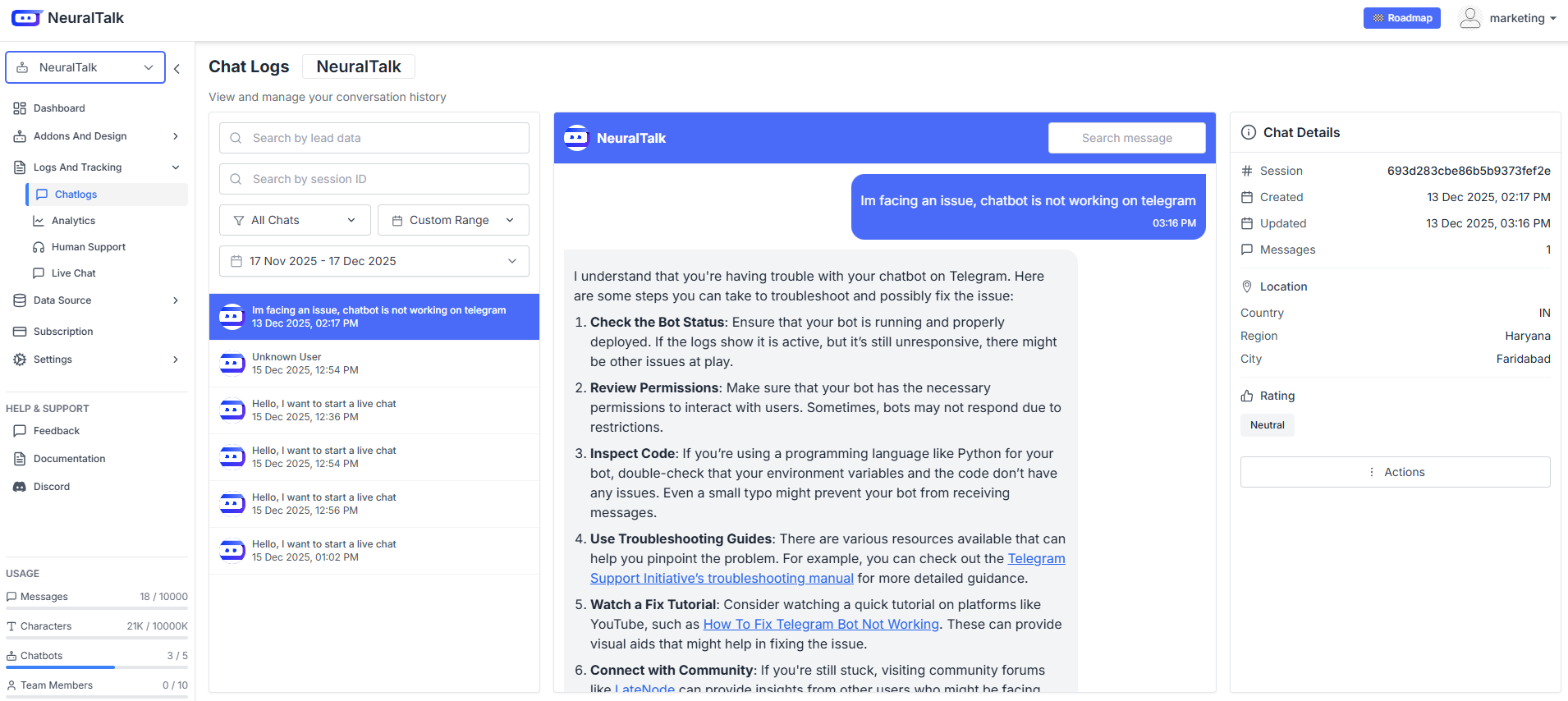
Chatlogs Interface
The Chatlogs interface is divided into three main sections for easier navigation and analysis.Search & Filters
Use the top search bar and filters to quickly locate conversations.- Search by Lead Data: Find conversations using user-related information such as name, email, or other lead fields (if enabled).
- Search by Session ID: Locate a specific conversation by entering its unique session ID. This is especially useful for debugging or customer support cases.
- Search by Message: Use the Search message field to find specific keywords or phrases inside chat conversations.
Chat List
The left panel displays conversations based on applied filters.- All Chats: Displays every conversation associated with the chatbot.
- Active Chats: Shows currently ongoing or open conversations.
- Closed Chats: Displays completed or ended conversations.
No chat history found
Chat Details
The right panel shows detailed information for the selected chat.- Conversation Messages: View the full conversation between the user and the chatbot in chronological order.
- Chat Metadata: View additional chat details and session information.
Filtering Chats by Date
You can narrow down conversations using predefined or custom date filters.Quick Date Filters
Today
View conversations from the current day.
Yesterday
View conversations from the previous day.
This Week
View conversations from the current week.
This Month
View conversations from the current month.
Custom Date Range
1
Select Custom Range
Choose Custom Range from the date filter options.
2
Choose Dates
- Select a Start Date
- Select an End Date
3
Apply or Clear
- Click Apply to filter chats
- Click Clear to reset the filters
No Chat History Found
You may see No chat history found when:- No conversations occurred during the selected time range
- Applied filters are too restrictive
- The chatbot has not received any user messages yet
Best Practices
- Review Chatlogs regularly to improve chatbot responses
- Use session ID search for faster issue resolution
- Filter chats by date to analyze trends over time
- Monitor closed chats to identify recurring user queries
Next Steps
Analytics
Analyze chatbot performance and engagement metrics
Human Support
View and manage human support requests