

Overview
The Corrections feature allows you to review, fix, and improve chatbot responses. It ensures your chatbot gives accurate, friendly, and high-quality answers by letting you approve, reject, or refine responses raised during conversations. This guide explains correction statuses, actions, and how to create and manage corrections.Accessing Corrections
1
Open Corrections
- Log in to your dashboard
- Navigate to Data Source from the main menu
- Click on Corrections in the left sidebar
2
View Correction Status
- Switch between Pending, Corrected, and Rejected tabs
- See total pages and results per page
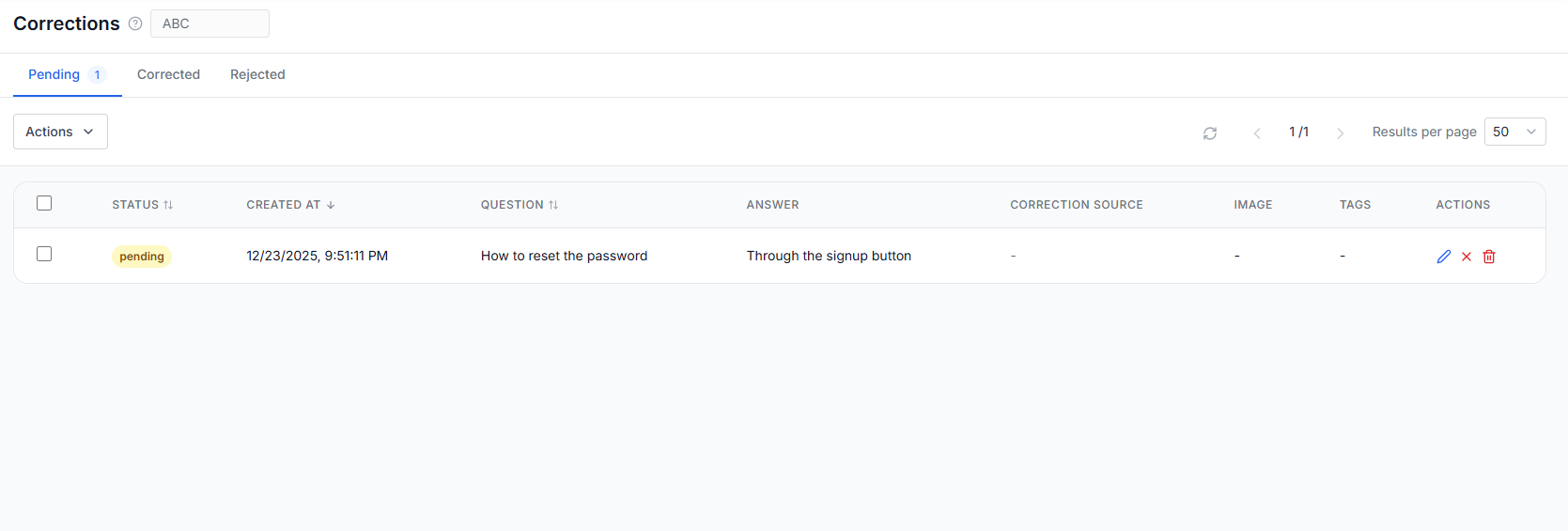
Corrections Dashboard
The Corrections page is divided into multiple tabs for better management.Correction Tabs
- Pending: Corrections awaiting review
- Corrected: Approved and applied corrections
- Rejected: Corrections that were dismissed
Actions Menu
The Actions dropdown provides bulk and management options.- Create Correction: Manually add a correction to improve chatbot answers.
- Export Approved Corrections: Download all corrected entries.
- Export Pending Corrections: Export pending corrections for review.
- Mark Selected as Corrected: Approve the selected corrections.
- Mark Selected as Rejected: Reject the selected corrections.
- Import Corrections: Upload multiple corrections in bulk.
- Download Template: Download a template for bulk correction import.
Creating a Correction
Click Create Correction to manually add or fix a chatbot response.Correction Form Fields
- Question: Enter the user question that needs correction.
- Original Chatbot Answer: Displays the response originally given by the chatbot.
- Model Answer: Write the correct answer to the question raised.
Answer Enhancement Options
- More Friendly & Detailed: Improves tone and clarity
- Enhance with AI: Automatically refines your answer
Optional Fields
- Source URL: Add a reference link
- Image URL: Attach an image
- Extra Info: Additional instructions like tone or style
- Tags: Add tags for easy filtering
Best Practices
- Review pending corrections regularly
- Use friendly, clear, and accurate model answers
- Add sources for credibility
- Tag corrections for easier management
- Export data for audits or training purposes