

Overview
The Analytics feature provides powerful insights into how your chatbot is performing. It helps you track conversations, measure engagement, analyze chat quality, and understand user behavior through interactive graphs and key performance metrics. This guide explains how to view analytics data, apply date filters, export reports, and interpret analytics sections.Accessing Analytics
1
Open the Dashboard
- Log in to your dashboard
- Navigate to Logs and Tracking from the main menu
- Click on Analytics in the left sidebar
2
View Analytics Data
- The Analytics page loads with charts and performance metrics
- By default, data is shown for Today
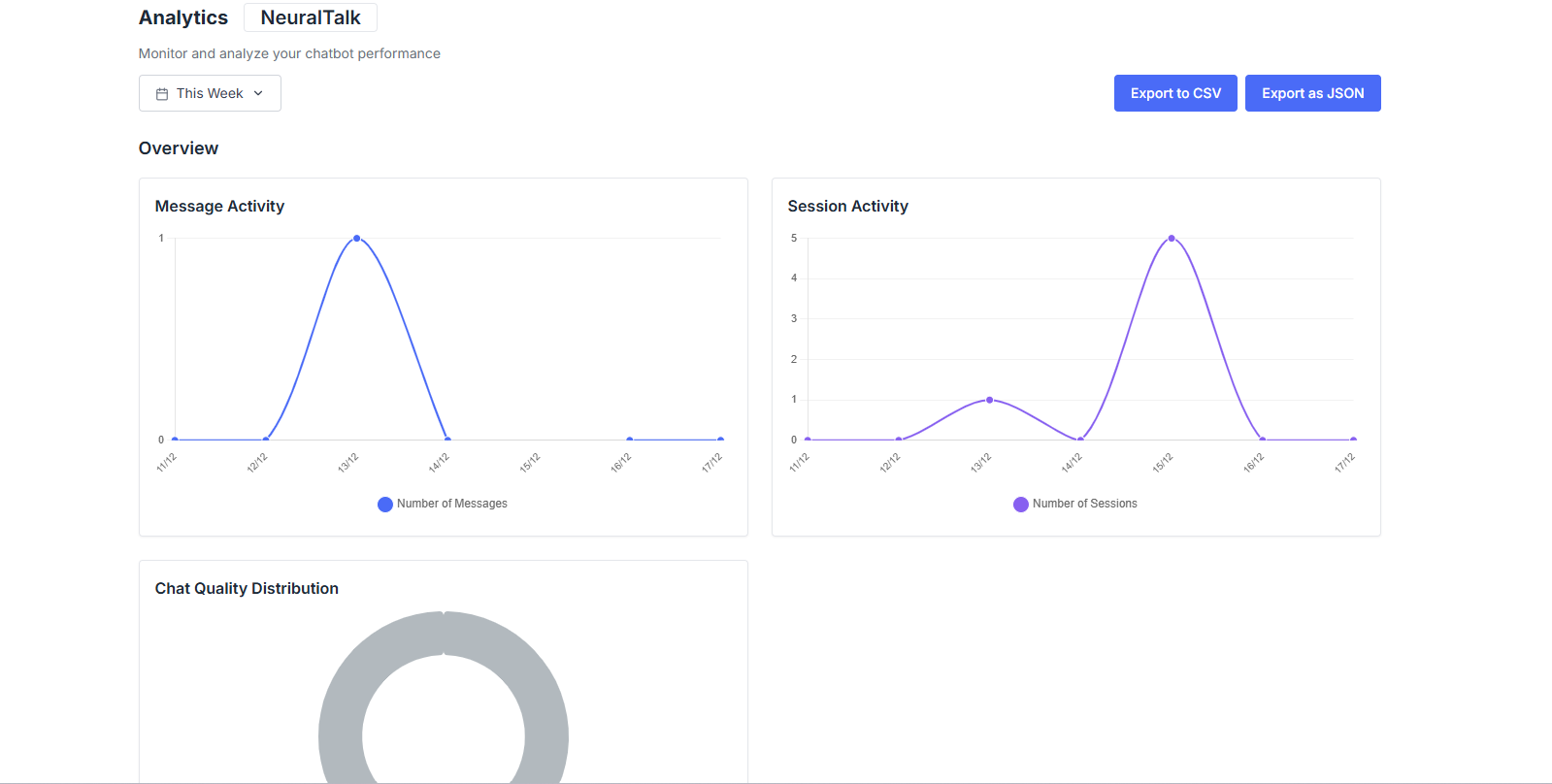
Analytics Interface Overview
The Analytics dashboard is organized into multiple sections to give a complete view of chatbot performance.Date Range Filters
Use the date selector at the top of the page to filter analytics data.- Quick Date Filters
- Custom Range
Exporting Analytics Data
You can export analytics data for reporting or further analysis.Export to CSV
Download analytics data in CSV format for spreadsheets and reports.
Export as JSON
Export raw analytics data in JSON format for technical analysis or integrations.
Analytics Sections
Overview Metrics
The Overview section displays key performance indicators at a glance.- Total Sessions: Total number of chat conversations during the selected time period.
- Total Messages: Total number of messages exchanged between users and the chatbot.
- Message Credits Used: Number of message credits consumed in the selected time range.
- Avg. Messages per Session: Average number of messages in each chat session.
Message Activity
The Message Activity graph shows message volume over time.What This Shows
What This Shows
- Message count trends
- Peak usage times
- Daily or hourly activity patterns
Why It Matters
Why It Matters
Helps you understand user engagement and chatbot usage patterns.
Session Activity
The Session Activity graph tracks chatbot sessions over time.What This Shows
What This Shows
- Number of chat sessions
- Growth or decline in usage
- Engagement trends
Why It Matters
Why It Matters
Indicates how often users start conversations with your chatbot.
Chat Quality Distribution
This section classifies conversations based on quality.Good Chats
Conversations with positive engagement or successful outcomes.
Neutral Chats
Conversations with average or mixed engagement.
Bad Chats
Conversations where the chatbot may not have met user expectations.
Best Practices
- Monitor analytics regularly to track chatbot performance
- Use message and session trends to identify peak usage
- Review chat quality to improve responses and training
- Export data for deeper analysis and reporting
Next Steps
Human Support
View and manage human support requests
Live Chat
Manage live chat sessions and provide real-time support