> ## Documentation Index
> Fetch the complete documentation index at: https://docs.neuraltalk.ai/llms.txt
> Use this file to discover all available pages before exploring further.
# 🤖 Training your AI Assistant
> Complete guide to training your AI assistant with knowledge sources and content
## Overview
Training your AI assistant is the most crucial step in creating an effective conversational AI. This guide covers everything you need to know about building a comprehensive knowledge base that will enable your assistant to provide accurate, helpful responses to your users.
## Knowledge Sources Overview
Knowledge sources are the foundation of your AI assistant's intelligence. They provide the specific information, data, and context that your assistant uses to generate accurate and helpful responses. Our platform supports multiple source types and advanced retrieval methods to ensure optimal performance.
## Supported Knowledge Source Types
### 📄 Document Sources
Upload and process various file formats:
Research papers, manuals, reports, and technical documentation
Policies, procedures, guides, and business documents (.docx, .doc)
Plain text knowledge bases, FAQs, and simple content (.txt, .md)
Structured Q\&A pairs and data (.csv, .json, .html)
### 🔗 Link-Based Sources
Add knowledge directly from web sources:
* **Website URLs**: Company pages, product information
* **Documentation Links**: Technical docs, API references
* **Knowledge Base Articles**: Help center content
* **Blog Posts**: Industry insights and updates
* **FAQ Pages**: Common questions and answers
### 🌐 Google Integration
Leverage Google's vast information network:
* **Google Search Results**: Real-time web information
* **Google Docs**: Collaborative documents
* **Google Drive Files**: Shared knowledge repositories
* **Google Sites**: Internal company wikis
## Getting Started with Training
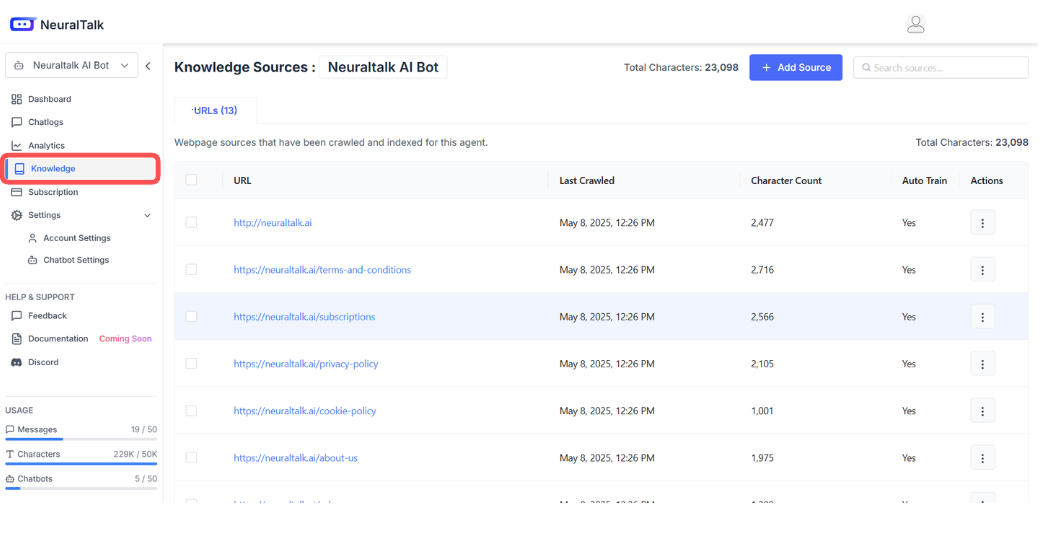
### Step 1: Access the Knowledge Section
1. **Navigate to Knowledge Sources**
* Log in to [neuraltalk.ai](https://neuraltalk.ai)
* Select your assistant from the dashboard
* Click "Knowledge" in the left sidebar
2. **View Your Knowledge Base**
* See total character count and usage
* View all existing knowledge sources
* Monitor last crawled dates and status
 ### Step 2: Add Your First Knowledge Source
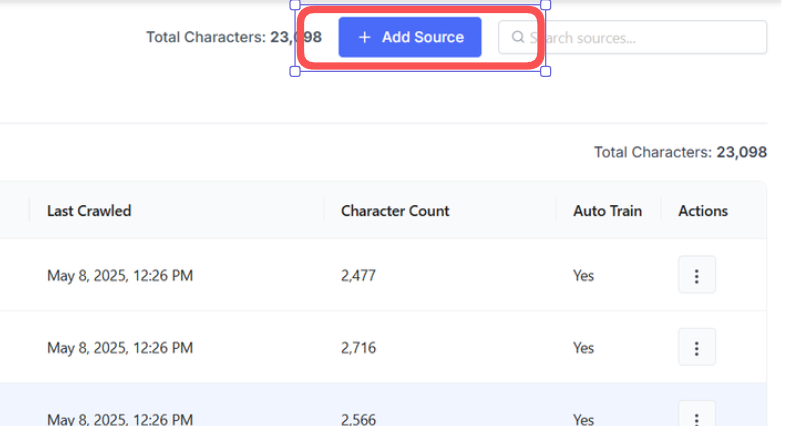
1. **Click "Add Source"**
* Located in the top-right area of the Knowledge Sources page
* Choose from multiple upload options
### Step 2: Add Your First Knowledge Source
1. **Click "Add Source"**
* Located in the top-right area of the Knowledge Sources page
* Choose from multiple upload options
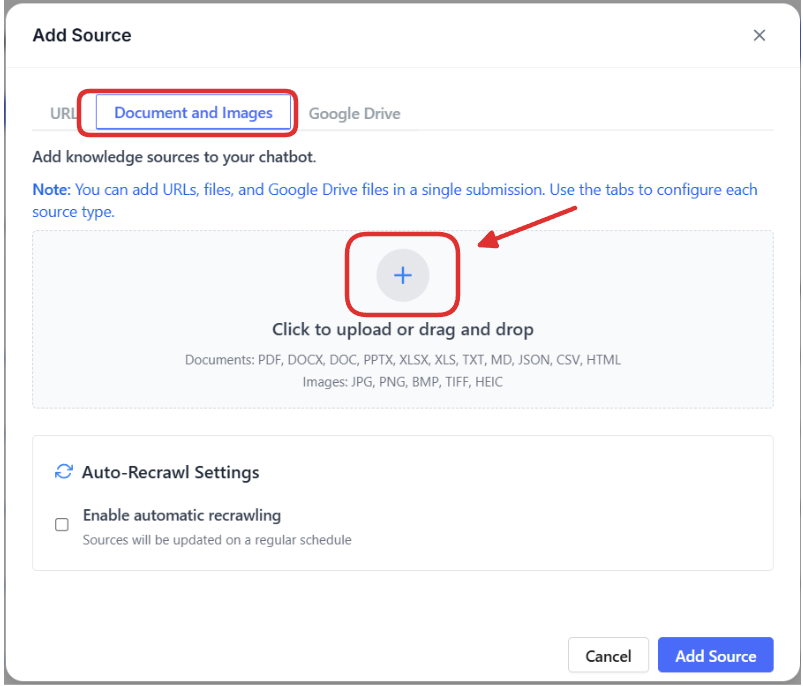
 2. **Select Upload Method**
* **Documents and Images**: Upload files directly
* **URLs**: Add web-based content
* **Google Drive**: Connect cloud-stored documents
## Document Upload Training
### Supported File Formats
* **PDF Files** (.pdf) - Manuals, guides, reports
* **Microsoft Office**: Word (.docx, .doc), PowerPoint (.pptx), Excel (.xlsx, .xls)
* **Text Files** (.txt, .md) - Plain text and markdown
* **Data Files** (.json, .csv, .html) - Structured content
* **Common Formats**: JPG, PNG, BMP, TIFF
* **Modern Formats**: HEIC (iPhone photos)
* **Use Cases**: Screenshots, diagrams, infographics
### Upload Process
2. **Select Upload Method**
* **Documents and Images**: Upload files directly
* **URLs**: Add web-based content
* **Google Drive**: Connect cloud-stored documents
## Document Upload Training
### Supported File Formats
* **PDF Files** (.pdf) - Manuals, guides, reports
* **Microsoft Office**: Word (.docx, .doc), PowerPoint (.pptx), Excel (.xlsx, .xls)
* **Text Files** (.txt, .md) - Plain text and markdown
* **Data Files** (.json, .csv, .html) - Structured content
* **Common Formats**: JPG, PNG, BMP, TIFF
* **Modern Formats**: HEIC (iPhone photos)
* **Use Cases**: Screenshots, diagrams, infographics
### Upload Process
 * Organize files with clear, descriptive names
* Ensure documents are up-to-date and accurate
* Use text-searchable PDFs (not scanned images)
* Include complete context and background information
* Drag and drop files into the upload area
* Or click to browse and select files
* Upload multiple documents at once
* Monitor character count usage
* Enable auto-recrawl for frequently updated content
* Set appropriate source categories
* Add descriptive tags for organization
* Wait for documents to be processed and indexed
* Test your assistant with questions about the new content
* Verify accuracy and completeness of responses
## Advanced Training Strategies
### Content Organization
* Group related documents together
* Use consistent naming conventions
* Create logical hierarchies
* Apply relevant tags
* Review content for accuracy
* Remove outdated information
* Ensure brand consistency
* Validate contact information
### Training Best Practices
Begin with your most important documents and gradually add more content. This allows you to:
* Test the assistant's responses early
* Identify knowledge gaps
* Refine your training approach
* Monitor performance improvements
Mix different types of content for comprehensive coverage:
* Official documentation and policies
* Frequently asked questions
* Product specifications and features
* Troubleshooting guides and procedures
* Company information and contact details
Keep your knowledge base current:
* Enable auto-recrawl for dynamic content
* Schedule regular content reviews
* Update information based on user feedback
* Remove outdated or incorrect content
## Advanced Retrieval System
### Smart Retrieval Options
Our intelligent retrieval system optimizes responses by:
#### Contextual Retrieval
* Analyzes user query context and intent
* Selects the most relevant knowledge sources
* Prioritizes recent and frequently accessed content
* Considers user conversation history
#### Multi-Source Synthesis
* Combines information from multiple sources
* Provides comprehensive answers
* Eliminates contradictory information
* Ensures response consistency
### Retrieval Modes
Target specific knowledge sources for focused, fast responses
Query across all sources for comprehensive information
Choose specific source combinations for custom strategies
## Knowledge Base Management
### Content Quality Control
* Content accuracy checks
* Duplicate detection and merging
* Freshness monitoring
* Quality scoring based on performance
* Regular content audits
* User feedback integration
* Performance analysis
* Continuous improvement
### Performance Analytics
Track your knowledge base effectiveness:
* Source utilization rates
* Most accessed content
* User engagement metrics
* Response success rates
* Response accuracy scores
* User satisfaction ratings
* Escalation rates
* Resolution times
## Training for Specific Use Cases
### Customer Support Assistant
* Product documentation and manuals
* Troubleshooting guides
* FAQ documents
* Contact information and hours
* Return and refund policies
* Escalation procedures
* Technical specifications
* Known issues and workarounds
* Account management procedures
* Billing and subscription information
### Sales Assistant
* Feature descriptions and benefits
* Pricing and packages
* Comparison charts
* Use cases and examples
* Qualification questions
* Objection handling
* Next steps and follow-up
* Contact and demo scheduling
### Internal Knowledge Base
* Policies and procedures
* HR information
* IT support guides
* Project documentation
* Role-specific procedures
* Tool and system guides
* Best practices
* Training materials
## Troubleshooting Training Issues
### Common Problems and Solutions
* Check if documents were processed successfully
* Verify content is relevant to user questions
* Review retrieval settings and priorities
* Test with specific questions about the content
* Review source content for accuracy
* Check for conflicting information across sources
* Add more specific examples and context
* Adjust model parameters and instructions
* Ensure content is well-structured and clear
* Add more comprehensive information
* Include examples and use cases
* Review and improve source organization
## Monitoring and Optimization
### Regular Maintenance
1. **Weekly Reviews**
* Check conversation logs for unanswered questions
* Identify knowledge gaps
* Review user feedback and ratings
* Update content based on new information
2. **Monthly Analysis**
* Analyze performance metrics
* Review source utilization
* Identify high-value content
* Plan content expansion
3. **Quarterly Audits**
* Comprehensive content review
* Update outdated information
* Reorganize knowledge structure
* Evaluate training effectiveness
### Continuous Improvement
* Collect and analyze user ratings
* Review conversation transcripts
* Identify improvement opportunities
* Implement feedback-based changes
* Monitor response accuracy
* Track resolution rates
* Measure user satisfaction
* Optimize based on data
## Next Steps
Now that your assistant is trained, explore these advanced features:
Add your trained assistant to your website
Customize the appearance and behavior
Set up seamless escalation to human agents
Add powerful tools and workflows
* Organize files with clear, descriptive names
* Ensure documents are up-to-date and accurate
* Use text-searchable PDFs (not scanned images)
* Include complete context and background information
* Drag and drop files into the upload area
* Or click to browse and select files
* Upload multiple documents at once
* Monitor character count usage
* Enable auto-recrawl for frequently updated content
* Set appropriate source categories
* Add descriptive tags for organization
* Wait for documents to be processed and indexed
* Test your assistant with questions about the new content
* Verify accuracy and completeness of responses
## Advanced Training Strategies
### Content Organization
* Group related documents together
* Use consistent naming conventions
* Create logical hierarchies
* Apply relevant tags
* Review content for accuracy
* Remove outdated information
* Ensure brand consistency
* Validate contact information
### Training Best Practices
Begin with your most important documents and gradually add more content. This allows you to:
* Test the assistant's responses early
* Identify knowledge gaps
* Refine your training approach
* Monitor performance improvements
Mix different types of content for comprehensive coverage:
* Official documentation and policies
* Frequently asked questions
* Product specifications and features
* Troubleshooting guides and procedures
* Company information and contact details
Keep your knowledge base current:
* Enable auto-recrawl for dynamic content
* Schedule regular content reviews
* Update information based on user feedback
* Remove outdated or incorrect content
## Advanced Retrieval System
### Smart Retrieval Options
Our intelligent retrieval system optimizes responses by:
#### Contextual Retrieval
* Analyzes user query context and intent
* Selects the most relevant knowledge sources
* Prioritizes recent and frequently accessed content
* Considers user conversation history
#### Multi-Source Synthesis
* Combines information from multiple sources
* Provides comprehensive answers
* Eliminates contradictory information
* Ensures response consistency
### Retrieval Modes
Target specific knowledge sources for focused, fast responses
Query across all sources for comprehensive information
Choose specific source combinations for custom strategies
## Knowledge Base Management
### Content Quality Control
* Content accuracy checks
* Duplicate detection and merging
* Freshness monitoring
* Quality scoring based on performance
* Regular content audits
* User feedback integration
* Performance analysis
* Continuous improvement
### Performance Analytics
Track your knowledge base effectiveness:
* Source utilization rates
* Most accessed content
* User engagement metrics
* Response success rates
* Response accuracy scores
* User satisfaction ratings
* Escalation rates
* Resolution times
## Training for Specific Use Cases
### Customer Support Assistant
* Product documentation and manuals
* Troubleshooting guides
* FAQ documents
* Contact information and hours
* Return and refund policies
* Escalation procedures
* Technical specifications
* Known issues and workarounds
* Account management procedures
* Billing and subscription information
### Sales Assistant
* Feature descriptions and benefits
* Pricing and packages
* Comparison charts
* Use cases and examples
* Qualification questions
* Objection handling
* Next steps and follow-up
* Contact and demo scheduling
### Internal Knowledge Base
* Policies and procedures
* HR information
* IT support guides
* Project documentation
* Role-specific procedures
* Tool and system guides
* Best practices
* Training materials
## Troubleshooting Training Issues
### Common Problems and Solutions
* Check if documents were processed successfully
* Verify content is relevant to user questions
* Review retrieval settings and priorities
* Test with specific questions about the content
* Review source content for accuracy
* Check for conflicting information across sources
* Add more specific examples and context
* Adjust model parameters and instructions
* Ensure content is well-structured and clear
* Add more comprehensive information
* Include examples and use cases
* Review and improve source organization
## Monitoring and Optimization
### Regular Maintenance
1. **Weekly Reviews**
* Check conversation logs for unanswered questions
* Identify knowledge gaps
* Review user feedback and ratings
* Update content based on new information
2. **Monthly Analysis**
* Analyze performance metrics
* Review source utilization
* Identify high-value content
* Plan content expansion
3. **Quarterly Audits**
* Comprehensive content review
* Update outdated information
* Reorganize knowledge structure
* Evaluate training effectiveness
### Continuous Improvement
* Collect and analyze user ratings
* Review conversation transcripts
* Identify improvement opportunities
* Implement feedback-based changes
* Monitor response accuracy
* Track resolution rates
* Measure user satisfaction
* Optimize based on data
## Next Steps
Now that your assistant is trained, explore these advanced features:
Add your trained assistant to your website
Customize the appearance and behavior
Set up seamless escalation to human agents
Add powerful tools and workflows