> ## Documentation Index
> Fetch the complete documentation index at: https://docs.neuraltalk.ai/llms.txt
> Use this file to discover all available pages before exploring further.
# 🔒 Security
> Guide to control where your chatbot is allowed or blocked from operating
🎥 Refer to the setup video for a step-by-step visual guide:
## Overview
The **Security** settings help you control exactly where your chatbot can be used.
You can allow specific domains, block unwanted websites, and ensure your chatbot only appears in trusted environments.
This prevents unauthorized embedding and protects your chatbot from misuse.
***
## Accessing Security Settings
* Log in to your dashboard
* Go to **Settings**
* Select **Chatbot Settings**
* Click on **Security**
* Choose which domains are allowed
* Block domains you want to restrict
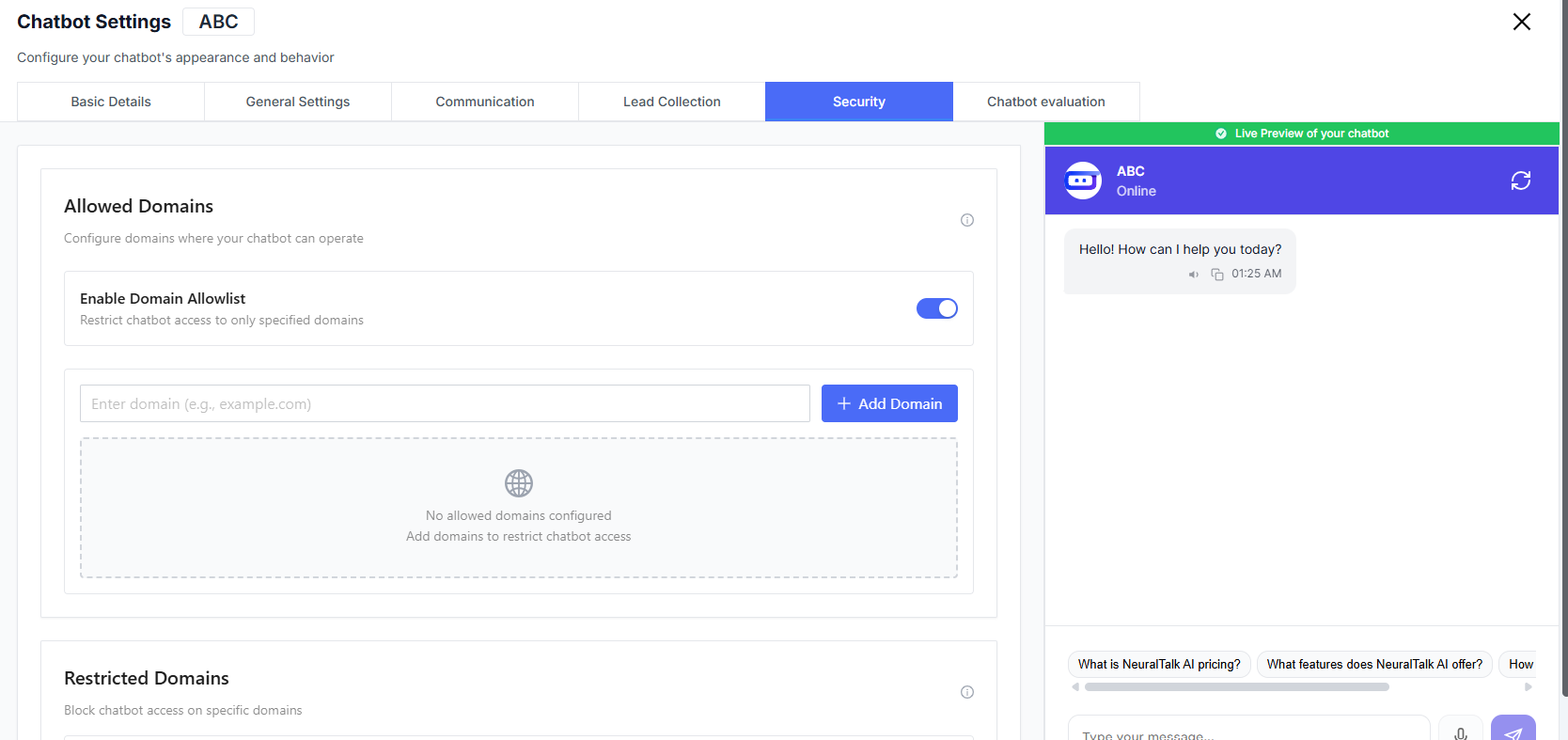
## Allowed Domains (Allowlist)
Use the allowlist to specify where your chatbot **is permitted** to run.
### Enable Domain Allowlist
The chatbot will only work on domains you explicitly approve.
Add domains where the chatbot should be active.
## Restricted Domains (Blocklist)
Block your chatbot from appearing on specific websites even if it is embedded.
### Enable Domain Blocklist
Prevent the chatbot from loading on specific domains.
Add domains to restrict chatbot access.
If no domains are added:
> **No restricted domains configured**\
> The chatbot won’t automatically block any sites.
## When to Use Each Option
* You only want the chatbot available on **your owned domains**
* You’re concerned about unauthorized embedding
* Security and control are top priorities
* Your chatbot is broadly embedded, but some domains must be blocked
* You want flexibility without strict restrictions
## Best Practices
* Prefer **allowlists** for maximum control and security
* Review domain lists regularly
* Add staging/test domains during development
* Remove unused or outdated domains to avoid confusion
 ## Allowed Domains (Allowlist)
Use the allowlist to specify where your chatbot **is permitted** to run.
### Enable Domain Allowlist
## Allowed Domains (Allowlist)
Use the allowlist to specify where your chatbot **is permitted** to run.
### Enable Domain Allowlist