> ## Documentation Index
> Fetch the complete documentation index at: https://docs.neuraltalk.ai/llms.txt
> Use this file to discover all available pages before exploring further.
# ⚙️ General Settings
> Guide to configure chatbot responses, rules, and behavior
🎥 Refer to the setup video for a step-by-step visual guide:
## Overview
The **General Settings** page controls how your chatbot thinks, writes, and interacts with users.\
Here you define conversation context, tone, creativity, greetings, suggested questions, and model options.
These settings help you balance performance, accuracy, cost, and user experience.
## Accessing General Settings
* Log in to your dashboard
* Go to **Settings**
* Select **Chatbot Settings**
* Click on **General Settings**
* Adjust response preferences, rules, and messages
* Changes are saved via Save button
## Conversation Behavior
### ⏳ Normal
* Balanced memory
* Optimized for **speed** and **cost**
### 📏 Extended
* Remembers **longer conversations**
* Provides better continuity across chats
### 🧠 Comprehensive
* **Deep context retention**
* Ideal for **complex workflows** and detailed tasks
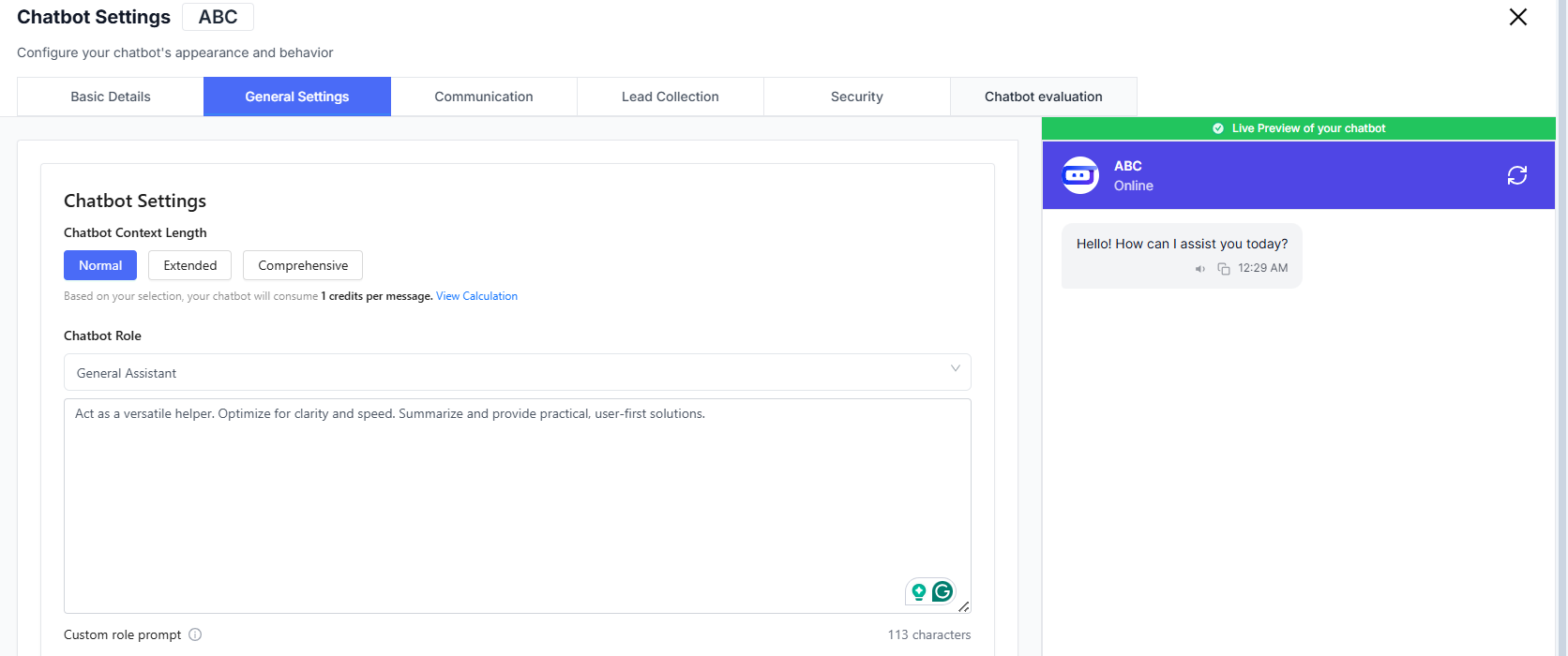
> Based on your selection, the chatbot consumes **1 credit per message**.\
> Click **View Calculation** to understand usage.
### Chatbot Role & Rules
#### Chatbot Role
Define the primary purpose and tone of your bot.
> **General Assistant**\
> Act as a versatile helper. Optimize for clarity and speed. Summarize and provide practical, user-first solutions.
#### Rules
Create guidelines that the chatbot must always follow.
### ✅ Examples of Useful Rules
* Avoid sharing internal or restricted information
* Keep answers short unless the user asks for details
* Always greet new users politely
### 💡 Tip
* Rules help enforce brand voice
* They also reduce incorrect or off-brand responses
## Response Style
### 🌍 Language
* Select the **default language** your chatbot will respond in
### 📏 Response Length
* Choose how long replies should be:
* **Concise**
* **Normal**
* **Detailed**
### Creativity (Temperature)
Control how creative or strict the chatbot should be.
* **0** → predictable and precise
* **0.5** → balanced (recommended)
* **1** → highly creative and exploratory
## General Messages
### Greeting Message
The first message users see when they open the chatbot.
> *Example:* **Hello! How can I assist you today?**
You can:
* Make it **more friendly & detailed**
* Enhance with AI suggestions
* Or **Use default greeting message**
### Fallback Message
Used when the chatbot cannot answer a question.
You can customize tone or rely on the default fallback.
## AI Model & Knowledge Settings
### 🧠 LLM Model
* Select the AI model that powers your chatbot
* Example: **gpt-4o**
### 🔗 Cite Sources
* Enable this to include **citation links**
* Citations appear when information comes from your **knowledge base**
## Best Practices
* Start with **Normal** context length, then scale if needed
* Keep rules simple and specific
* Use concise greetings and friendly tone
* Add 4–6 suggested questions for better engagement
* Enable citations when accuracy matters (docs, help centers)
 ## Conversation Behavior
### ⏳ Normal
* Balanced memory
* Optimized for **speed** and **cost**
### 📏 Extended
* Remembers **longer conversations**
* Provides better continuity across chats
### 🧠 Comprehensive
* **Deep context retention**
* Ideal for **complex workflows** and detailed tasks
> Based on your selection, the chatbot consumes **1 credit per message**.\
> Click **View Calculation** to understand usage.
### Chatbot Role & Rules
#### Chatbot Role
Define the primary purpose and tone of your bot.
> **General Assistant**\
> Act as a versatile helper. Optimize for clarity and speed. Summarize and provide practical, user-first solutions.
#### Rules
Create guidelines that the chatbot must always follow.
### ✅ Examples of Useful Rules
* Avoid sharing internal or restricted information
* Keep answers short unless the user asks for details
* Always greet new users politely
### 💡 Tip
* Rules help enforce brand voice
* They also reduce incorrect or off-brand responses
## Response Style
### 🌍 Language
* Select the **default language** your chatbot will respond in
### 📏 Response Length
* Choose how long replies should be:
* **Concise**
* **Normal**
* **Detailed**
### Creativity (Temperature)
Control how creative or strict the chatbot should be.
* **0** → predictable and precise
* **0.5** → balanced (recommended)
* **1** → highly creative and exploratory
## General Messages
### Greeting Message
The first message users see when they open the chatbot.
> *Example:* **Hello! How can I assist you today?**
You can:
* Make it **more friendly & detailed**
* Enhance with AI suggestions
* Or **Use default greeting message**
### Fallback Message
Used when the chatbot cannot answer a question.
You can customize tone or rely on the default fallback.
## AI Model & Knowledge Settings
### 🧠 LLM Model
* Select the AI model that powers your chatbot
* Example: **gpt-4o**
### 🔗 Cite Sources
* Enable this to include **citation links**
* Citations appear when information comes from your **knowledge base**
## Best Practices
* Start with **Normal** context length, then scale if needed
* Keep rules simple and specific
* Use concise greetings and friendly tone
* Add 4–6 suggested questions for better engagement
* Enable citations when accuracy matters (docs, help centers)
## Conversation Behavior
### ⏳ Normal
* Balanced memory
* Optimized for **speed** and **cost**
### 📏 Extended
* Remembers **longer conversations**
* Provides better continuity across chats
### 🧠 Comprehensive
* **Deep context retention**
* Ideal for **complex workflows** and detailed tasks
> Based on your selection, the chatbot consumes **1 credit per message**.\
> Click **View Calculation** to understand usage.
### Chatbot Role & Rules
#### Chatbot Role
Define the primary purpose and tone of your bot.
> **General Assistant**\
> Act as a versatile helper. Optimize for clarity and speed. Summarize and provide practical, user-first solutions.
#### Rules
Create guidelines that the chatbot must always follow.
### ✅ Examples of Useful Rules
* Avoid sharing internal or restricted information
* Keep answers short unless the user asks for details
* Always greet new users politely
### 💡 Tip
* Rules help enforce brand voice
* They also reduce incorrect or off-brand responses
## Response Style
### 🌍 Language
* Select the **default language** your chatbot will respond in
### 📏 Response Length
* Choose how long replies should be:
* **Concise**
* **Normal**
* **Detailed**
### Creativity (Temperature)
Control how creative or strict the chatbot should be.
* **0** → predictable and precise
* **0.5** → balanced (recommended)
* **1** → highly creative and exploratory
## General Messages
### Greeting Message
The first message users see when they open the chatbot.
> *Example:* **Hello! How can I assist you today?**
You can:
* Make it **more friendly & detailed**
* Enhance with AI suggestions
* Or **Use default greeting message**
### Fallback Message
Used when the chatbot cannot answer a question.
You can customize tone or rely on the default fallback.
## AI Model & Knowledge Settings
### 🧠 LLM Model
* Select the AI model that powers your chatbot
* Example: **gpt-4o**
### 🔗 Cite Sources
* Enable this to include **citation links**
* Citations appear when information comes from your **knowledge base**
## Best Practices
* Start with **Normal** context length, then scale if needed
* Keep rules simple and specific
* Use concise greetings and friendly tone
* Add 4–6 suggested questions for better engagement
* Enable citations when accuracy matters (docs, help centers)