> ## Documentation Index
> Fetch the complete documentation index at: https://docs.neuraltalk.ai/llms.txt
> Use this file to discover all available pages before exploring further.
# 💬 Communication
> Guide to manage live chat, voice chat, and human handover settings
🎥 Refer to the setup video for a step-by-step visual guide:
## Overview
The **Communication** settings help you connect users with real human support when needed.\
Here you can enable live chat, voice chat, and configure human handover rules.
These tools improve trust, reduce unresolved queries, and ensure complex issues get handled by your team.
## Accessing Communication Settings
* Log in to your dashboard
* Navigate to **Settings**
* Select **Chatbot Settings**
* Click on **Communication**
* Options to Turn on live chat, voice chat, or human handover
* Customize messages and handling methods
## Live Chat Support
### Live Chat Status
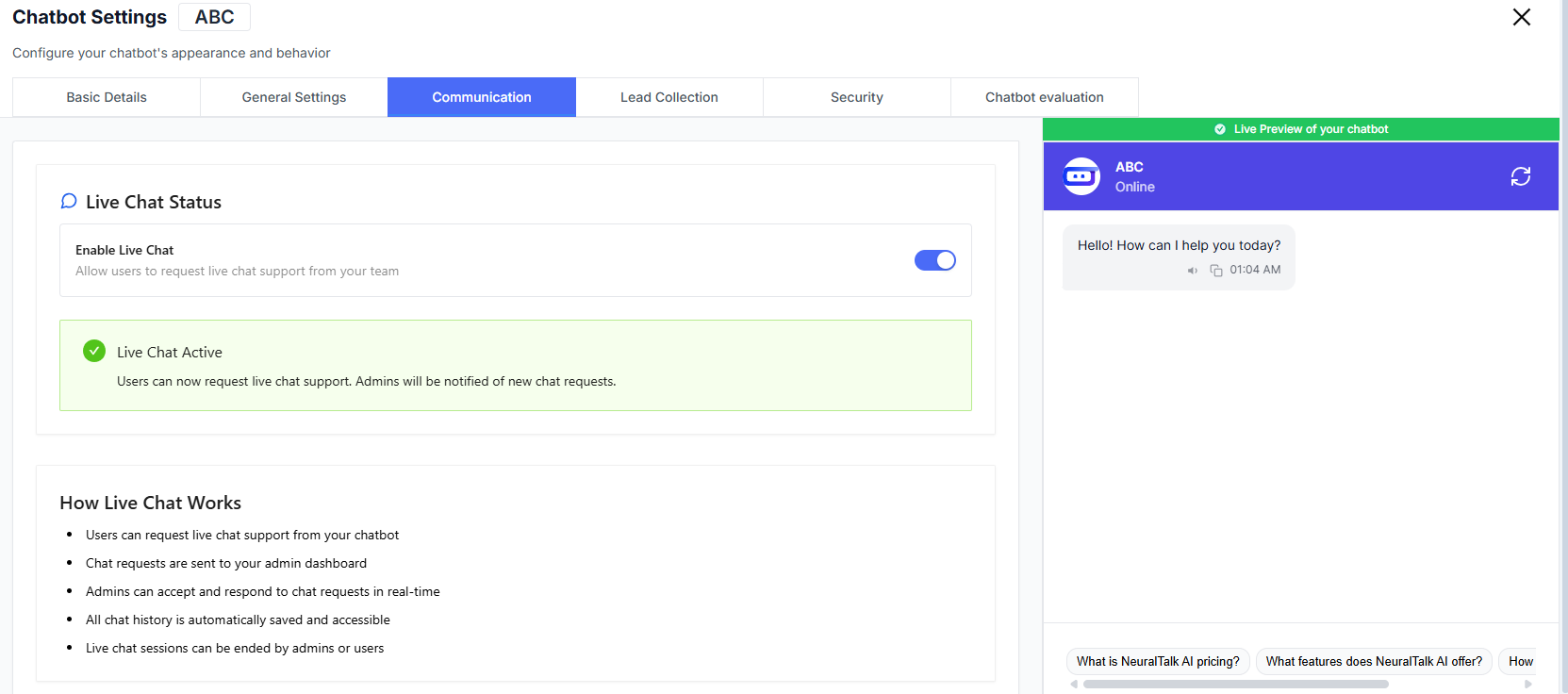
Toggle live chat so users can connect with your support team in real-time.
### 💬 Enable Live Chat
* Allow users to request **live chat support** directly from the chatbot
### ✅ Live Chat Active
* When enabled, admins are **notified of new chat requests**
* Users can start real-time conversations with your team
### How Live Chat Works
### 🔄 Process Overview
* Users request live chat through the chatbot
* Requests appear in the **admin dashboard**
* Admins can accept and reply instantly
* Entire chat history is automatically saved
* Sessions can be ended by either the user or the admin
### 🎯 Why Use Live Chat
* Ideal for **billing questions**
* Helpful for **account issues**
* Useful for **urgent support** where AI alone may not be enough
## Voice Chat Support
### Voice Chat Status
Enable voice-based conversations between users and your team.
Allow users to request **voice chat support** directly from the chatbot.
> Great for users who prefer speaking rather than typing especially in support and onboarding scenarios.
## Human Handover Settings
Configure when conversations should shift from AI to a human agent.
### Enable Human Handover
Turn on human handover to give users the option to talk to a real person.
Users can request to speak with a human at any time.
Conversations can be routed to support staff based on your workflow.
### Handover Message
This is the message shown when a conversation is transferred.
> **Default Message:**\
> *Your request has been transferred to a human agent. They will get back to you soon.*
You can:
* Make the message **more friendly & detailed**
* Use AI to refine the tone
* Or **keep the default message**
### Handover Method
Choose how handovers are handled.
Transfers the user directly into a live chat session with your team.
> Future options may include ticket creation or email routing (depending on setup).
## Best Practices
* Keep handover messages polite and reassuring
* Enable live chat during business hours for faster resolutions
* Use voice chat for premium or complex queries
* Review saved transcripts to improve training and automation
* Start with manual handover, then automate as workflows mature
 ## Live Chat Support
### Live Chat Status
Toggle live chat so users can connect with your support team in real-time.
### 💬 Enable Live Chat
* Allow users to request **live chat support** directly from the chatbot
### ✅ Live Chat Active
* When enabled, admins are **notified of new chat requests**
* Users can start real-time conversations with your team
### How Live Chat Works
### 🔄 Process Overview
* Users request live chat through the chatbot
* Requests appear in the **admin dashboard**
* Admins can accept and reply instantly
* Entire chat history is automatically saved
* Sessions can be ended by either the user or the admin
### 🎯 Why Use Live Chat
* Ideal for **billing questions**
* Helpful for **account issues**
* Useful for **urgent support** where AI alone may not be enough
## Voice Chat Support
### Voice Chat Status
Enable voice-based conversations between users and your team.
## Live Chat Support
### Live Chat Status
Toggle live chat so users can connect with your support team in real-time.
### 💬 Enable Live Chat
* Allow users to request **live chat support** directly from the chatbot
### ✅ Live Chat Active
* When enabled, admins are **notified of new chat requests**
* Users can start real-time conversations with your team
### How Live Chat Works
### 🔄 Process Overview
* Users request live chat through the chatbot
* Requests appear in the **admin dashboard**
* Admins can accept and reply instantly
* Entire chat history is automatically saved
* Sessions can be ended by either the user or the admin
### 🎯 Why Use Live Chat
* Ideal for **billing questions**
* Helpful for **account issues**
* Useful for **urgent support** where AI alone may not be enough
## Voice Chat Support
### Voice Chat Status
Enable voice-based conversations between users and your team.