> ## Documentation Index
> Fetch the complete documentation index at: https://docs.neuraltalk.ai/llms.txt
> Use this file to discover all available pages before exploring further.
# 🧪 Chatbot Evaluation
> Test and compare chatbot prompts across multiple AI models
🎥 Refer to the setup video for a step-by-step visual guide:
## Overview
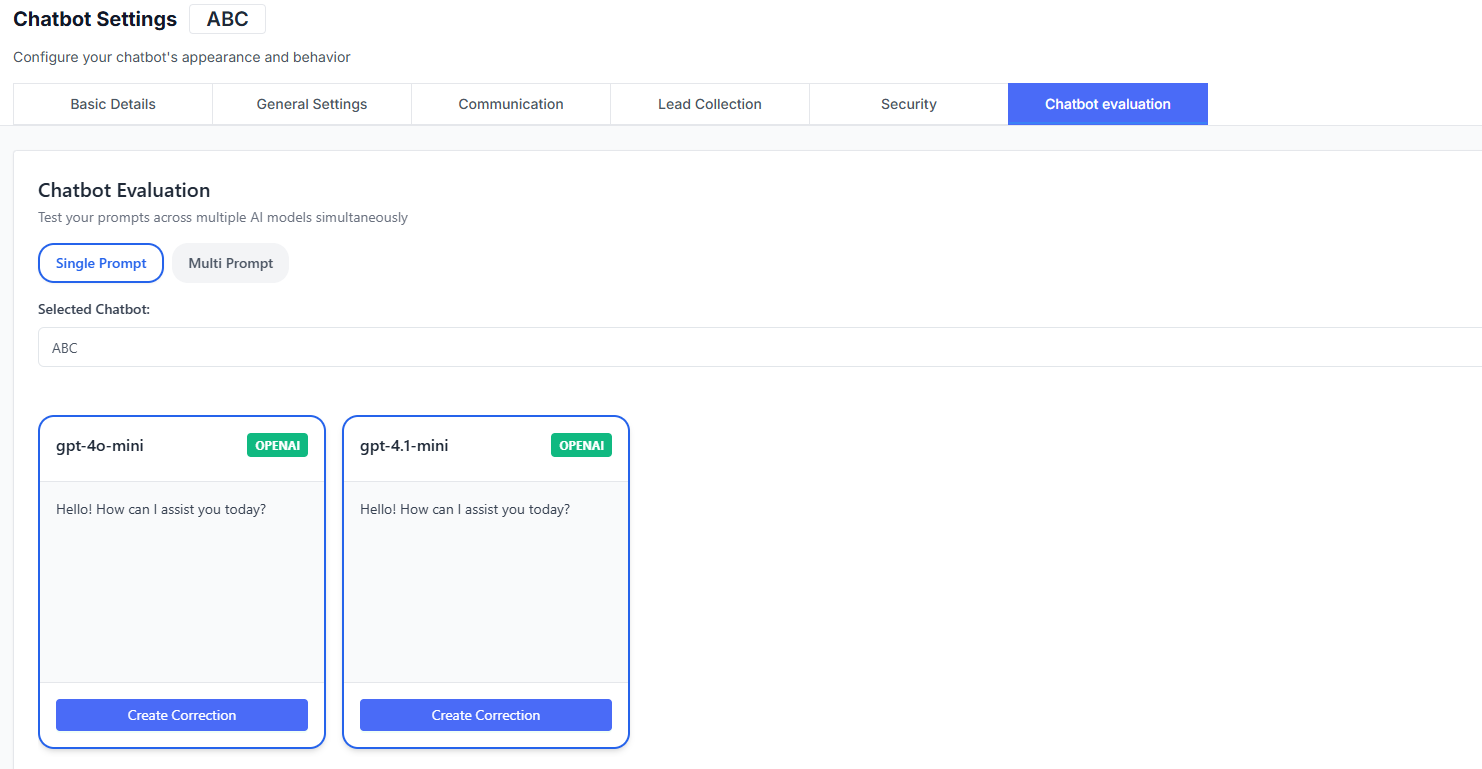
The **Chatbot Evaluation** tool allows you to test your prompts across multiple AI models, all at once.
You can compare responses side-by-side, analyze quality, and decide which model works best for your chatbot before deploying changes.
This helps improve accuracy, tone, and user experience without guesswork.
## Accessing Chatbot Evaluation
* Log in to your dashboard
* Go to **Settings**
* Select **Chatbot Settings**
* Click on **Chatbot Evaluation**
* Pick **Single Prompt** or **Multi Prompt** depending on your testing needs
## Evaluation Modes
### Single Prompt
Test one prompt at a time and compare responses instantly.
### Multi Prompt
Run multiple prompts in sequence to analyze consistency across AI models.
> Use **Multi Prompt** when testing workflows, FAQs, or repetitive scenarios.
## Selected Chatbot
You can evaluate prompts using your existing chatbot configuration.
Example: **ABC**
Example default: **gpt-4o-mini**
The chatbot’s greeting and behavior settings are applied automatically during testing.
## Comparing AI Models
The evaluation area displays each selected AI model with its response.
Each response panel includes a **Create Correction** option.
### Create Correction
Use this to:
* Suggest improvements
* Fix tone or clarity
* Adjust formatting or accuracy
Corrections help refine how the chatbot learns and responds over time.
## Selecting AI Models
### Select AI Models
Choose which models to include in the comparison.
Click **+ Add Model** to include additional AI engines.
Mix different providers or versions for deeper evaluation.
## Saving Changes
When you're satisfied with your testing results:
Apply updated model selections or evaluation settings.
## Best Practices
* Test prompts for both short and long responses
* Compare tone, accuracy, and consistency across models
* Use corrections regularly to fine-tune results
* Re-evaluate after major chatbot updates
* Document findings for your team
 ## Evaluation Modes
### Single Prompt
Test one prompt at a time and compare responses instantly.
### Multi Prompt
Run multiple prompts in sequence to analyze consistency across AI models.
> Use **Multi Prompt** when testing workflows, FAQs, or repetitive scenarios.
## Selected Chatbot
You can evaluate prompts using your existing chatbot configuration.
## Evaluation Modes
### Single Prompt
Test one prompt at a time and compare responses instantly.
### Multi Prompt
Run multiple prompts in sequence to analyze consistency across AI models.
> Use **Multi Prompt** when testing workflows, FAQs, or repetitive scenarios.
## Selected Chatbot
You can evaluate prompts using your existing chatbot configuration.