> ## Documentation Index
> Fetch the complete documentation index at: https://docs.neuraltalk.ai/llms.txt
> Use this file to discover all available pages before exploring further.
# ⚙️ Basic Details
> Guide to configure your chatbot’s identity, behavior, and branding
🎥 Refer to the setup video for a step-by-step visual guide:
## Overview
The **Basic Details** page defines your chatbot’s identity including its name, language, personality role, and branding.\
These settings shape how your chatbot appears to users and how it behaves during conversations.
This guide explains how to configure chatbot information, update role behavior, and manage visual branding.
## Accessing Basic Details
* Log in to your dashboard
* Navigate to **Settings**
* Select **Chatbot Settings**
* Click on **Basic Details**
* The page displays editable sections for chatbot info, role settings, and branding
## Basic Details Sections
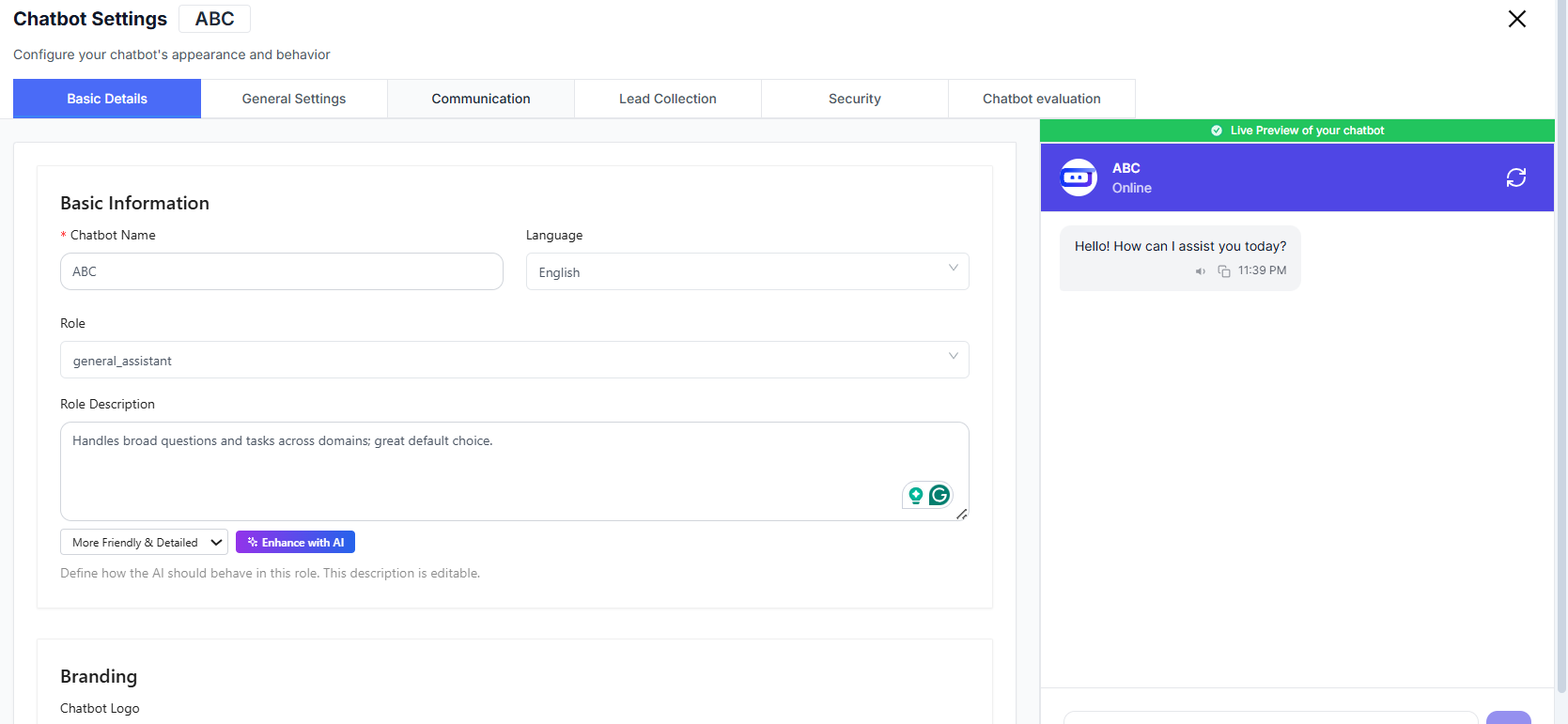
### Basic Information
This section controls the primary identity of the chatbot.
* **Chatbot Name** – The display name users will see
* **Language** – Default language for conversations
* **Role** – Core behavior profile (e.g., `general_assistant`)
* **Role Description** – Explains the role purpose
### AI Behavior
The **Enhance with AI** area lets you refine how the chatbot responds.
* Adjust tone to be more friendly or detailed
* Customize instructions to guide chatbot behavior
* Edit role description anytime
Clear behavior instructions help produce consistent, reliable responses.
## Branding
Branding helps align the chatbot visually with your product or organization.
### 🖼️ Chatbot Logo
* Upload a logo users will see in chat windows
* **Recommended size:** 100×100px
* **Max size:** 1MB
* **Formats:** JPG, PNG, SVG
### ✍️ Tagline
* Add a short descriptive line under your chatbot name
* **Example:** *Your AI Assistant*
* You can also choose **Use default tagline**
## Best Practices
* Choose a clear, memorable chatbot name
* Keep role descriptions simple but meaningful
* Use a clean square logo for best display
* Update branding to match your company identity
* Periodically refine AI instructions as your chatbot evolves
 ## Basic Details Sections
### Basic Information
This section controls the primary identity of the chatbot.
* **Chatbot Name** – The display name users will see
* **Language** – Default language for conversations
* **Role** – Core behavior profile (e.g., `general_assistant`)
* **Role Description** – Explains the role purpose
### AI Behavior
The **Enhance with AI** area lets you refine how the chatbot responds.
## Basic Details Sections
### Basic Information
This section controls the primary identity of the chatbot.
* **Chatbot Name** – The display name users will see
* **Language** – Default language for conversations
* **Role** – Core behavior profile (e.g., `general_assistant`)
* **Role Description** – Explains the role purpose
### AI Behavior
The **Enhance with AI** area lets you refine how the chatbot responds.