> ## Documentation Index
> Fetch the complete documentation index at: https://docs.neuraltalk.ai/llms.txt
> Use this file to discover all available pages before exploring further.
# 💬 Live Chat
> Complete guide to managing live chat sessions and providing real-time human support
🎥 Refer to the setup video for a step-by-step visual guide:
## Overview
The **Live Chat** feature enables your team to manage real-time chat sessions and provide instant human support to users. It allows agents to monitor chat status, filter sessions, and actively respond to users when immediate assistance is required.
This guide explains how to access live chats, filter sessions, and manage live conversations effectively.
## Accessing Live Chat
* Log in to your dashboard
* Navigate to **Live Chat** from the main menu
* The Live Chat page loads with available chat sessions
* Sessions are listed based on selected filters and date range
## Live Chat Overview
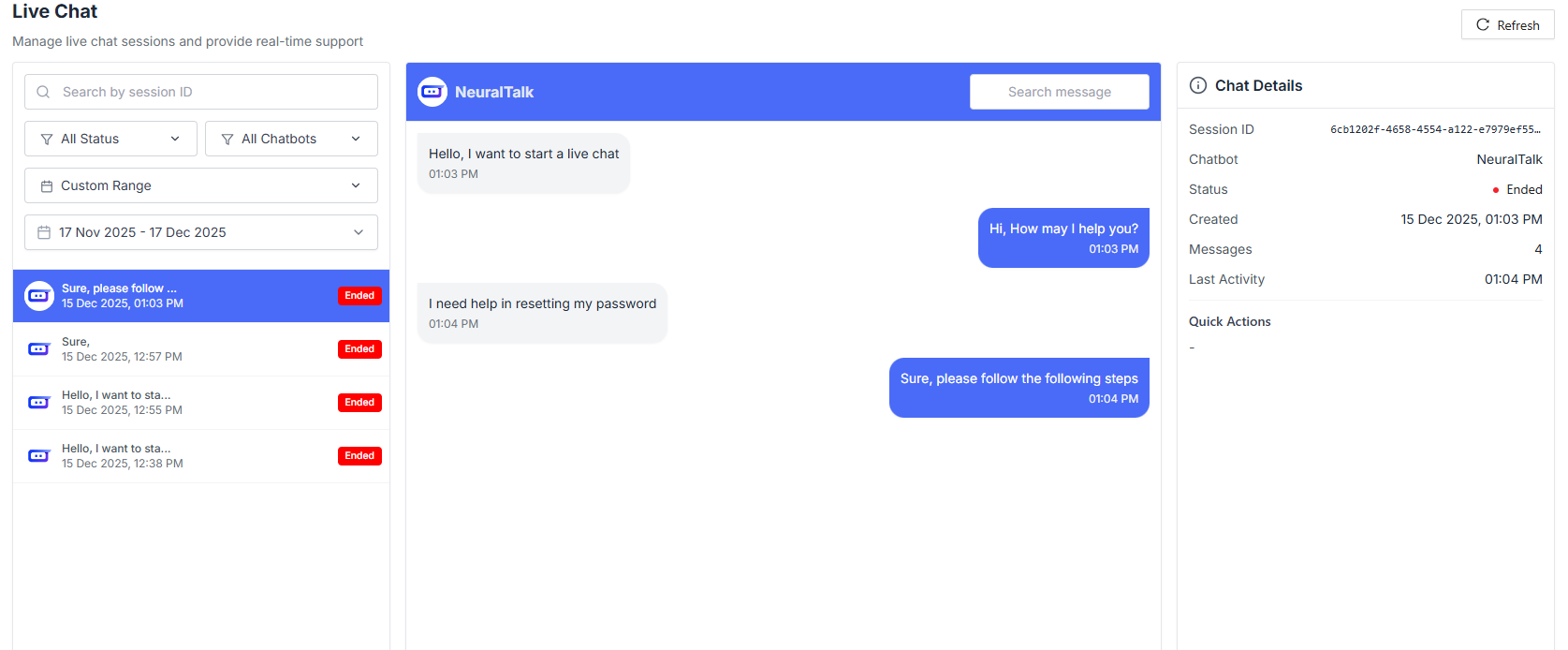
The Live Chat is divided into multiple sections to help you manage conversations efficiently.
### Search & Controls
Use the top controls to refresh and search chat sessions.
* **Refresh**: Click **Refresh** to reload the latest live chat sessions and statuses.
* **Search by Session ID**: Quickly locate a specific live chat by entering its unique session ID.
### Status Filters
Filter live chat sessions based on their current status.
* **All Status**: Displays all live chat sessions regardless of state.
* **Pending**: Chats waiting for a human agent to join.
* **Active**: Chats currently being handled by a human agent.
* **Ended**: Chats that have been completed.
* **Cancelled**: Chats that were cancelled before completion.
### Chatbot Filters
If multiple chatbots are enabled, you can filter sessions by chatbot.
* **All Chatbots**: View live chats from all chatbots.
* **Specific Chatbot**: Filter chats by selecting a specific chatbot.
## Date Range Filtering
Filter live chat sessions by time period.
### Quick Date Filters
View chats from today.
View chats from yesterday.
View chats from the current week.
View chats from the current month.
### Custom Date Range
* **Select Date Range**: Choose **Start Date** and **End Date**.
* **Apply or Clear**:
* Click **Apply** to filter sessions
* Click **Clear** to reset filters
## Live Chat Sessions List
The left panel displays all chat sessions based on applied filters.
Each session shows:
* Message preview
* Date and time
* Current status (Pending, Active, Ended, Cancelled)
## Starting a Live Chat
To begin responding to a user:
1. Select a chat session from the list
2. Click on the session to open messaging
If no chat is selected, you’ll see:\
**Select a chat to start messaging**
## Chat Details
The right panel displays chat-related information.
* **Live Messages**: View and respond to messages in real time.
* **Chat Details**: View session details such as status, timestamps, and chatbot information.
## Best Practices
* Regularly refresh to view new pending chats
* Prioritize **Pending** chats to reduce response time
* Use chatbot filters in multi-bot environments
* Review ended chats for training and quality improvement
 ## Live Chat Overview
The Live Chat is divided into multiple sections to help you manage conversations efficiently.
### Search & Controls
Use the top controls to refresh and search chat sessions.
* **Refresh**: Click **Refresh** to reload the latest live chat sessions and statuses.
* **Search by Session ID**: Quickly locate a specific live chat by entering its unique session ID.
### Status Filters
Filter live chat sessions based on their current status.
* **All Status**: Displays all live chat sessions regardless of state.
* **Pending**: Chats waiting for a human agent to join.
* **Active**: Chats currently being handled by a human agent.
* **Ended**: Chats that have been completed.
* **Cancelled**: Chats that were cancelled before completion.
### Chatbot Filters
If multiple chatbots are enabled, you can filter sessions by chatbot.
* **All Chatbots**: View live chats from all chatbots.
* **Specific Chatbot**: Filter chats by selecting a specific chatbot.
## Date Range Filtering
Filter live chat sessions by time period.
### Quick Date Filters
## Live Chat Overview
The Live Chat is divided into multiple sections to help you manage conversations efficiently.
### Search & Controls
Use the top controls to refresh and search chat sessions.
* **Refresh**: Click **Refresh** to reload the latest live chat sessions and statuses.
* **Search by Session ID**: Quickly locate a specific live chat by entering its unique session ID.
### Status Filters
Filter live chat sessions based on their current status.
* **All Status**: Displays all live chat sessions regardless of state.
* **Pending**: Chats waiting for a human agent to join.
* **Active**: Chats currently being handled by a human agent.
* **Ended**: Chats that have been completed.
* **Cancelled**: Chats that were cancelled before completion.
### Chatbot Filters
If multiple chatbots are enabled, you can filter sessions by chatbot.
* **All Chatbots**: View live chats from all chatbots.
* **Specific Chatbot**: Filter chats by selecting a specific chatbot.
## Date Range Filtering
Filter live chat sessions by time period.
### Quick Date Filters