> ## Documentation Index
> Fetch the complete documentation index at: https://docs.neuraltalk.ai/llms.txt
> Use this file to discover all available pages before exploring further.
# 🤝 Human Support
> Complete guide to viewing and managing human support requests from chatbot conversations
🎥 Refer to the setup video for a step-by-step visual guide:
## Overview
The **Human Support** feature allows you to view and manage conversations where users request assistance from a human agent. This helps teams step in at the right time, resolve complex queries, and ensure a better support experience when automation alone is not enough.
This guide explains how to access human support requests, search conversations, apply filters, and view request details.
## Accessing Human Support
* Log in to your dashboard
* Navigate to **Human Support** from the main menu
* The Human Support page loads with available requests
* If no requests exist, you’ll see **No human support requests found**
## Human Support Overview
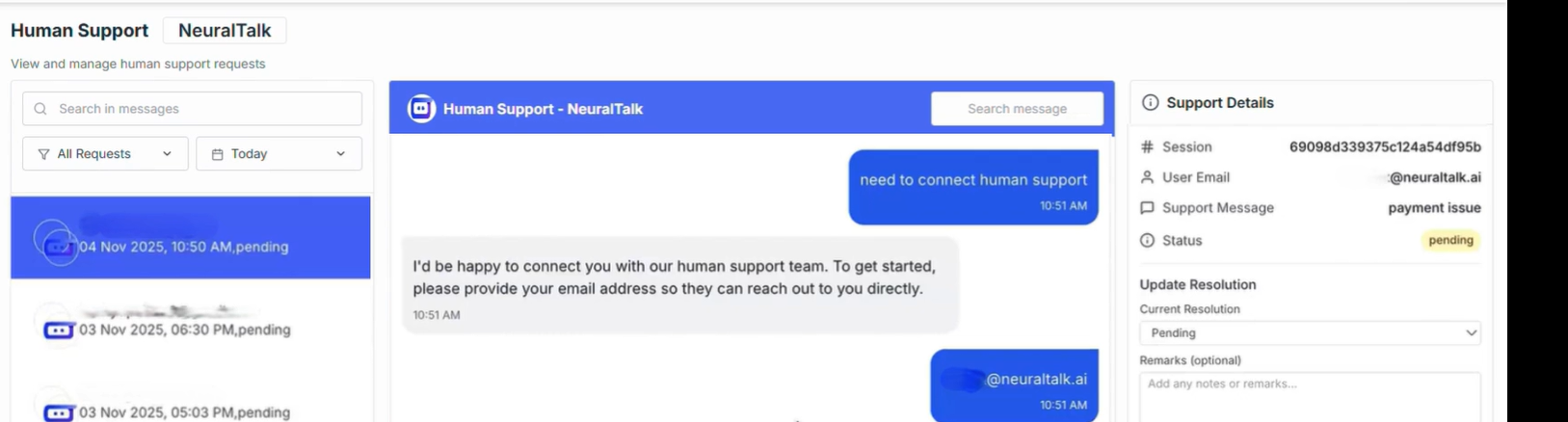
The Human Support is designed to help you quickly find and manage support requests.
### Search & Filters
Use the top search bar and filters to locate specific support requests.
* **Search in Messages**: Search for keywords or phrases within support request conversations using the **Search message** field.
* **Request Status Filters**: Filter support requests by status: All Requests, Open, In Progress, Resolved, Closed
### Date Range Filters
Narrow down support requests by selecting a time range.
* **Quick Date Filters**
* **Custom Range**
## Support Requests List
The left panel displays all support requests based on selected filters.
* **All Requests**: Displays every human support request.
* **Open**: Requests that are newly created and awaiting action.
* **In Progress**: Requests currently being handled by a human agent.
* **Resolved**: Requests that have been successfully addressed.
* **Closed**: Requests that are completed and archived.
If no requests match the selected filters, the system displays:\
**No human support requests found**
## Support Request Details
The right panel shows detailed information for the selected support request.
* **Conversation Messages**: View the full conversation between the user, chatbot, and human agent.
* **Support Details**: View request-related information and current status.
## When Support Requests Appear
Support requests are created when:
* A user explicitly requests human assistance
* The chatbot escalates the conversation to a human agent
* Automated responses are insufficient for the user’s needs
## Best Practices
* Regularly monitor open requests to reduce response time
* Use message search to quickly locate specific issues
* Update request status as it progresses
* Review resolved requests to improve chatbot training
 ## Human Support Overview
The Human Support is designed to help you quickly find and manage support requests.
### Search & Filters
Use the top search bar and filters to locate specific support requests.
* **Search in Messages**: Search for keywords or phrases within support request conversations using the **Search message** field.
* **Request Status Filters**: Filter support requests by status: All Requests, Open, In Progress, Resolved, Closed
### Date Range Filters
Narrow down support requests by selecting a time range.
* **Quick Date Filters**
* **Custom Range**
## Support Requests List
The left panel displays all support requests based on selected filters.
* **All Requests**: Displays every human support request.
* **Open**: Requests that are newly created and awaiting action.
* **In Progress**: Requests currently being handled by a human agent.
* **Resolved**: Requests that have been successfully addressed.
* **Closed**: Requests that are completed and archived.
If no requests match the selected filters, the system displays:\
**No human support requests found**
## Support Request Details
The right panel shows detailed information for the selected support request.
* **Conversation Messages**: View the full conversation between the user, chatbot, and human agent.
* **Support Details**: View request-related information and current status.
## When Support Requests Appear
Support requests are created when:
* A user explicitly requests human assistance
* The chatbot escalates the conversation to a human agent
* Automated responses are insufficient for the user’s needs
## Best Practices
* Regularly monitor open requests to reduce response time
* Use message search to quickly locate specific issues
* Update request status as it progresses
* Review resolved requests to improve chatbot training
## Human Support Overview
The Human Support is designed to help you quickly find and manage support requests.
### Search & Filters
Use the top search bar and filters to locate specific support requests.
* **Search in Messages**: Search for keywords or phrases within support request conversations using the **Search message** field.
* **Request Status Filters**: Filter support requests by status: All Requests, Open, In Progress, Resolved, Closed
### Date Range Filters
Narrow down support requests by selecting a time range.
* **Quick Date Filters**
* **Custom Range**
## Support Requests List
The left panel displays all support requests based on selected filters.
* **All Requests**: Displays every human support request.
* **Open**: Requests that are newly created and awaiting action.
* **In Progress**: Requests currently being handled by a human agent.
* **Resolved**: Requests that have been successfully addressed.
* **Closed**: Requests that are completed and archived.
If no requests match the selected filters, the system displays:\
**No human support requests found**
## Support Request Details
The right panel shows detailed information for the selected support request.
* **Conversation Messages**: View the full conversation between the user, chatbot, and human agent.
* **Support Details**: View request-related information and current status.
## When Support Requests Appear
Support requests are created when:
* A user explicitly requests human assistance
* The chatbot escalates the conversation to a human agent
* Automated responses are insufficient for the user’s needs
## Best Practices
* Regularly monitor open requests to reduce response time
* Use message search to quickly locate specific issues
* Update request status as it progresses
* Review resolved requests to improve chatbot training