> ## Documentation Index
> Fetch the complete documentation index at: https://docs.neuraltalk.ai/llms.txt
> Use this file to discover all available pages before exploring further.
# 🧾 Chatlogs
> Complete guide to viewing, searching, and managing your chatbot conversation history
🎥 Refer to the setup video for a step-by-step visual guide:
## Overview
The **Chatlogs** feature lets you view and manage all conversations handled by your chatbot. It helps you monitor interactions, investigate user issues, and analyze chatbot performance by providing detailed conversation history with powerful search and filtering options.
This guide walks you through how to access Chatlogs, search conversations, and apply date based filters.
## Accessing Chatlogs
* Log in to your dashboard
* Navigate to **Logs and Tracking** from the main menu
* Click on **Chatlogs** in the left sidebar
* The Chatlogs screen opens with available conversation history
* If no data is available, you’ll see **No chat history found**
## Chatlogs Interface
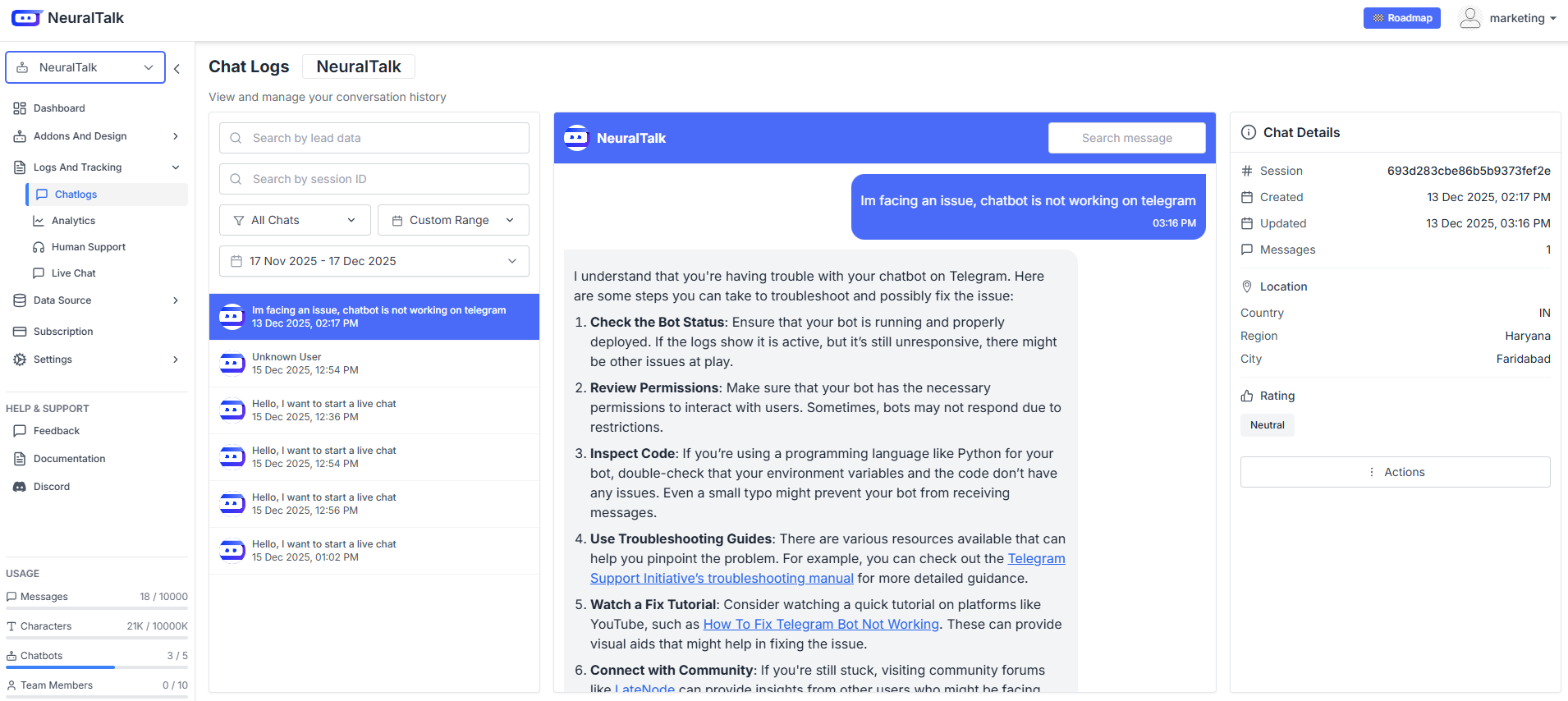
The Chatlogs interface is divided into three main sections for easier navigation and analysis.
### Search & Filters
Use the top search bar and filters to quickly locate conversations.
* **Search by Lead Data**: Find conversations using user-related information such as name, email, or other lead fields (if enabled).
* **Search by Session ID**: Locate a specific conversation by entering its unique session ID. This is especially useful for debugging or customer support cases.
* **Search by Message**: Use the **Search message** field to find specific keywords or phrases inside chat conversations.
### Chat List
The left panel displays conversations based on applied filters.
* **All Chats**: Displays every conversation associated with the chatbot.
* **Active Chats**: Shows currently ongoing or open conversations.
* **Closed Chats**: Displays completed or ended conversations.
If no conversations match your criteria, the system will display:\
**No chat history found**
### Chat Details
The right panel shows detailed information for the selected chat.
* **Conversation Messages**: View the full conversation between the user and the chatbot in chronological order.
* **Chat Metadata**: View additional chat details and session information.
## Filtering Chats by Date
You can narrow down conversations using predefined or custom date filters.
### Quick Date Filters
View conversations from the current day.
View conversations from the previous day.
View conversations from the current week.
View conversations from the current month.
### Custom Date Range
Choose **Custom Range** from the date filter options.
* Select a **Start Date**
* Select an **End Date**
* Click **Apply** to filter chats
* Click **Clear** to reset the filters
## No Chat History Found
You may see **No chat history found** when:
* No conversations occurred during the selected time range
* Applied filters are too restrictive
* The chatbot has not received any user messages yet
## Best Practices
* Review Chatlogs regularly to improve chatbot responses
* Use session ID search for faster issue resolution
* Filter chats by date to analyze trends over time
* Monitor closed chats to identify recurring user queries
## Next Steps
Analyze chatbot performance and engagement metrics
View and manage human support requests
 ## Chatlogs Interface
The Chatlogs interface is divided into three main sections for easier navigation and analysis.
### Search & Filters
Use the top search bar and filters to quickly locate conversations.
* **Search by Lead Data**: Find conversations using user-related information such as name, email, or other lead fields (if enabled).
* **Search by Session ID**: Locate a specific conversation by entering its unique session ID. This is especially useful for debugging or customer support cases.
* **Search by Message**: Use the **Search message** field to find specific keywords or phrases inside chat conversations.
### Chat List
The left panel displays conversations based on applied filters.
* **All Chats**: Displays every conversation associated with the chatbot.
* **Active Chats**: Shows currently ongoing or open conversations.
* **Closed Chats**: Displays completed or ended conversations.
If no conversations match your criteria, the system will display:\
**No chat history found**
### Chat Details
The right panel shows detailed information for the selected chat.
* **Conversation Messages**: View the full conversation between the user and the chatbot in chronological order.
* **Chat Metadata**: View additional chat details and session information.
## Filtering Chats by Date
You can narrow down conversations using predefined or custom date filters.
### Quick Date Filters
## Chatlogs Interface
The Chatlogs interface is divided into three main sections for easier navigation and analysis.
### Search & Filters
Use the top search bar and filters to quickly locate conversations.
* **Search by Lead Data**: Find conversations using user-related information such as name, email, or other lead fields (if enabled).
* **Search by Session ID**: Locate a specific conversation by entering its unique session ID. This is especially useful for debugging or customer support cases.
* **Search by Message**: Use the **Search message** field to find specific keywords or phrases inside chat conversations.
### Chat List
The left panel displays conversations based on applied filters.
* **All Chats**: Displays every conversation associated with the chatbot.
* **Active Chats**: Shows currently ongoing or open conversations.
* **Closed Chats**: Displays completed or ended conversations.
If no conversations match your criteria, the system will display:\
**No chat history found**
### Chat Details
The right panel shows detailed information for the selected chat.
* **Conversation Messages**: View the full conversation between the user and the chatbot in chronological order.
* **Chat Metadata**: View additional chat details and session information.
## Filtering Chats by Date
You can narrow down conversations using predefined or custom date filters.
### Quick Date Filters