> ## Documentation Index
> Fetch the complete documentation index at: https://docs.neuraltalk.ai/llms.txt
> Use this file to discover all available pages before exploring further.
# ✈️ Telegram Integration
> Connect your NeuralTalk AI chatbot to Telegram and provide instant AI-powered responses to your users or community members through this popular messaging platform.
🎥 Refer to the setup video for a step-by-step visual guide:
## Overview
The Telegram integration enables your NeuralTalk AI chatbot to:
* 🚀 **Reach customers** on one of the world's most popular messaging platforms
* ⚡ **Provide instant support** through automated responses
* 📱 **Share rich media content** including images, files, and links
* 👥 **Create group chats** for community engagement
* 🤖 **Handle both private conversations** and group interactions
* 🔧 **Process commands** with the "/" prefix for enhanced functionality
## Prerequisites
Before setting up your Telegram integration, you need:
* ✅ An active NeuralTalk AI account
* 🤖 A created and trained chatbot on the NeuralTalk AI platform
* 📱 A Telegram account
* 🔑 Access to create bots through BotFather
💡 **Note**: You'll need to create a Telegram bot through @BotFather first before connecting it to NeuralTalk AI.
## Setup Process
### Step 1: Access NeuralTalk AI Integration Settings
1. Log in to your NeuralTalk AI dashboard
2. Select the chatbot you want to connect to Telegram
3. Navigate to **Settings** in the left sidebar
4. Click on **Chatbot Settings** from the expanded menu
5. Navigate to the **Integrations** tab at the top of the page
6. Find the **Telegram Integration** card
7. Click the **Connect** button to start the integration process
### Step 2: Create Your Telegram Bot
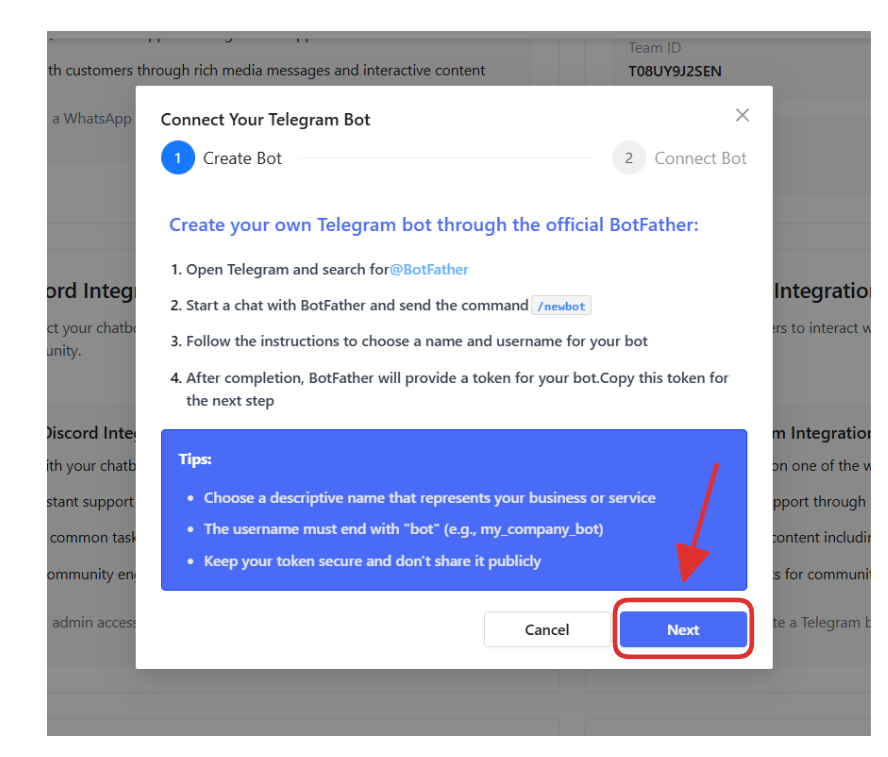
When you click **Connect**, you'll see the bot creation modal:
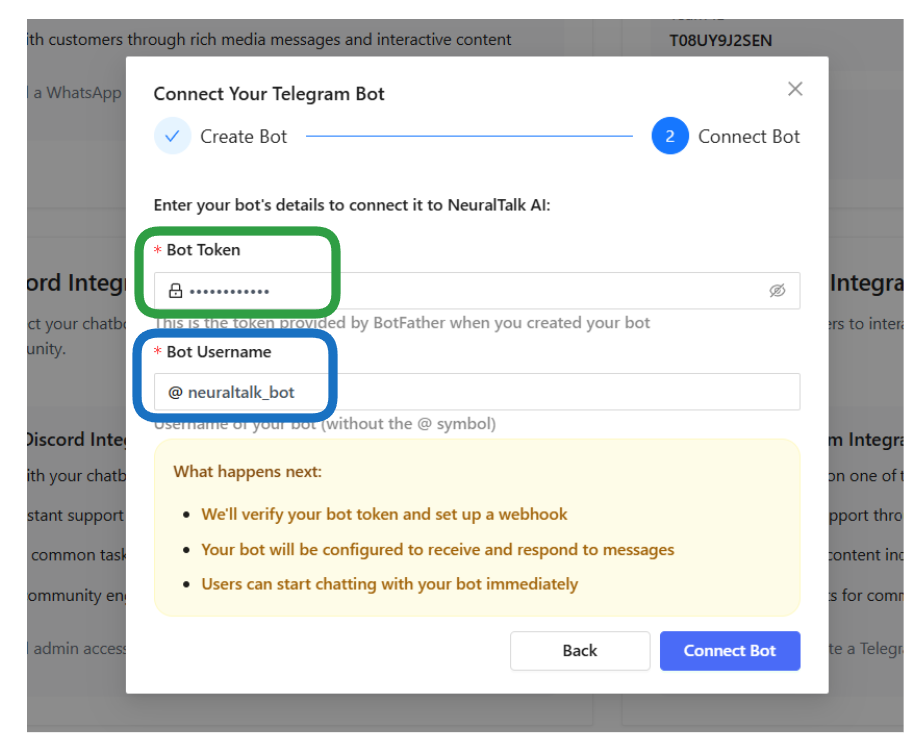
Follow these steps to create your Telegram bot through the official BotFather:
**Create your own Telegram bot through the official BotFather:**
1. **Open Telegram** and search for **@BotFather**
2. **Start a conversation** with BotFather by clicking "Start" or sending `/start`
3. **Start a chat** with BotFather and send the command `/newbot`
4. **BotFather will guide you** through the bot creation process
5. **Follow the instructions** to choose a name and username for your bot:
* **Bot Name**: Choose a descriptive name that represents your business or service
* **Username**: Must end with "bot" (e.g., my\_company\_bot)
* **Requirements**: The username must be unique across all Telegram bots
6. **After completion**, BotFather will provide a token for your bot. Copy this token for the next step
The token will look like: `123456789:ABCdefGhIJKlmNoPQRsTUVwxyZ`
⚠️ **Important**: Keep this token secure and don't share it publicly
💡 **Tips**:
* Choose a descriptive name that represents your business or service
* The username must end with "bot" (e.g., my\_company\_bot)
* Keep your token secure and don't share it publicly
Once you have your token, click **Next** to proceed to the connection step.
### Step 3: Connect Your Bot to NeuralTalk AI
After creating your bot and obtaining the token, you'll proceed to the connection step:
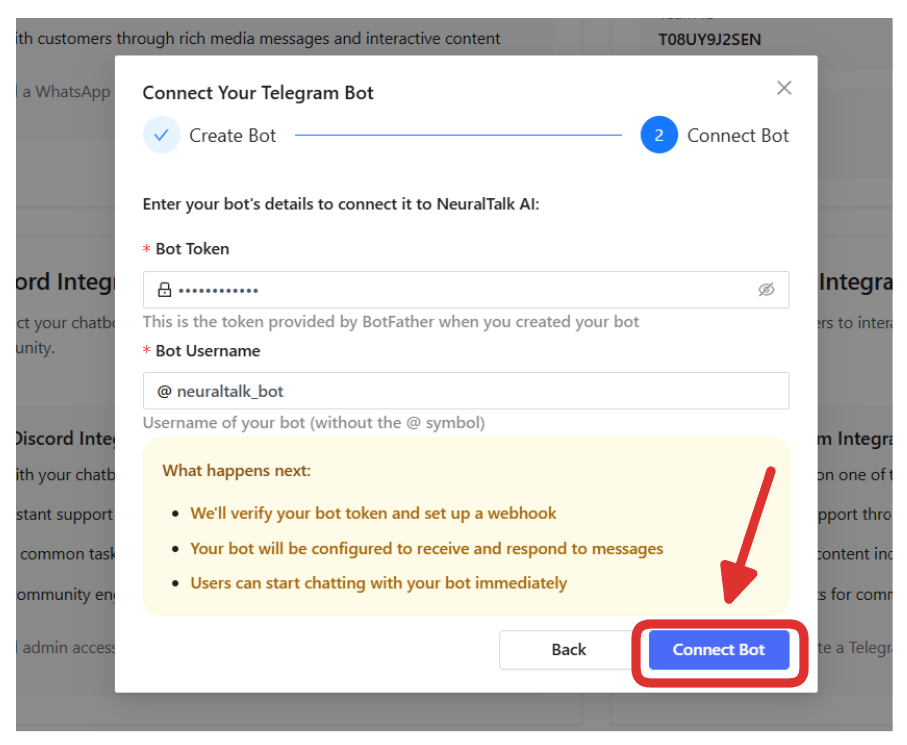
Enter your bot's details to connect it to NeuralTalk AI:
**Bot Token**:
* Paste the token provided by BotFather when you created your bot
* This token is required for NeuralTalk AI to communicate with your Telegram bot
**Bot Username**:
* Enter the username of your bot (without the @ symbol)
* This should match the username you set when creating the bot
**What happens next**:
* ✅ We'll verify your bot token and set up a webhook
* 🤖 Your bot will be configured to receive and respond to messages
* 👥 Users can start chatting with your bot immediately
Click **Connect Bot** to complete the integration
### Step 4: Verify Successful Connection
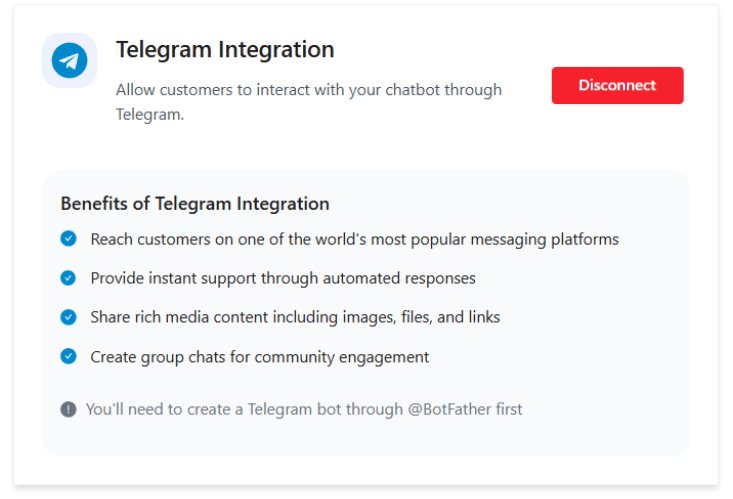
After successful connection, you'll see the integration status updated:
The connection status will show:
* ✅ **Telegram Integration Connected**
* **Connected Bot**: Your bot's username
* **Bot Status**: Active/Connected
* **Last Connected**: Date and time of connection
* **Webhook Status**: Verified and active
You'll also see a red **Disconnect** button if you need to remove the integration later.
## How It Works
Once connected, your NeuralTalk AI Telegram bot will:
### 📱 Private Chat Interactions
* **Direct Messages**: Responds to all messages sent directly to the bot
* **Instant Support**: Provides immediate assistance to users
* **Personal Assistant**: Acts as a 24/7 AI assistant for your customers
### 👥 Group Chat Interactions
* **Mention-Based**: Responds when explicitly mentioned (e.g., @your\_bot\_name)
* **Command Support**: Processes commands with the "/" prefix
* **Community Engagement**: Facilitates group discussions and support
### 🧠 AI Processing
* **Context Aware**: Understands conversation context and history
* **Knowledge Base**: Leverages your trained knowledge base
* **Natural Language**: Processes and responds in natural language
* **Rich Media**: Can share images, documents, and formatted messages
## Usage Examples
### Private Chat Scenarios
**Customer Support**:
```
Customer: "What are your business hours?"
Bot: "We're open Monday-Friday 9 AM to 6 PM EST. For urgent matters outside these hours, please describe your issue and we'll respond first thing in the morning!"
```
**Product Information**:
```
Customer: "Tell me about your premium plan"
Bot: "Our Premium plan includes: ✅ Unlimited chatbot interactions ✅ Advanced analytics ✅ Priority support ✅ Custom integrations. Would you like me to help you upgrade?"
```
### Group Chat Scenarios
**Community Support**:
```
User: "@your_bot How do I reset my password?"
Bot: "To reset your password: 1) Go to the login page 2) Click 'Forgot Password' 3) Enter your email 4) Check your inbox for reset instructions. Need more help? DM me!"
```
**FAQ Responses**:
```
User: "@your_bot /help"
Bot: "Here are some things I can help with:
🔧 Technical support
💰 Billing questions
📋 Account management
💬 General inquiries
Just mention me or send me a DM!"
```
## Bot Commands
Set up helpful commands for easy interaction:
* `/start` - Welcome message and bot introduction
* `/help` - List of available commands and capabilities
* `/support` - Direct link to human support
* `/status` - Check service status
* `/contact` - Contact information
## Advanced Configuration
### Bot Commands Setup
Configure custom commands through BotFather:
1. Open chat with **@BotFather**
2. Send `/setcommands`
3. Select your bot
4. Enter commands in this format:
```
start - Get started with the bot
help - Show available commands
support - Contact human support
status - Check service status
contact - Get contact information
```
### Group Chat Settings
Configure your bot's behavior in groups:
**Privacy Mode**:
* **Enabled**: Bot only sees messages that mention it or are replies to it
* **Disabled**: Bot sees all messages in the group
* Configure via BotFather: `/mybots > Select Bot > Bot Settings > Privacy Mode`
**Group Admin Rights**:
* Add your bot as an admin for enhanced functionality
* Allows bot to manage messages, users, and group settings
### Message Formatting
Your bot supports rich Telegram formatting:
* **Bold text**: `*bold*`
* **Italic text**: `_italic_`
* **Inline code**: `` `code` ``
* **Links**: `[text](URL)`
* **Mentions**: `@username`
## Monitoring & Analytics
Track your Telegram integration performance:
### Key Metrics Dashboard
**Message Volume**:
* Daily/weekly message counts
* Private vs group chat distribution
* Peak usage hours
**User Engagement**:
* New users joining daily
* Most active users
* Popular commands and queries
**Response Performance**:
* Average response time
* Success rate
* User satisfaction scores
**Growth Metrics**:
* User acquisition trends
* Retention rates
* Conversation completion rates
### Detailed Analytics
Access comprehensive analytics in your NeuralTalk AI dashboard:
1. Go to **Analytics > Channels**
2. Select the **Telegram** tab
3. View detailed metrics and trends
4. Export data for further analysis
## Troubleshooting
### Common Issues & Solutions
#### 🚫 Bot Not Responding
* **Check Connection Status**: Verify integration shows "Connected" in dashboard
* **Test Commands**: Try sending `/start` in a private chat
* **Webhook Issues**: Disconnect and reconnect the integration
* **Token Validation**: Ensure the bot token is correct and active
#### 👥 Group Chat Issues
* **Privacy Mode**: Check if privacy mode is affecting message visibility
* **Bot Permissions**: Ensure bot has permission to send messages
* **Mention Format**: Use proper @botname format for mentions
* **Admin Rights**: Consider making the bot an admin for better functionality
#### 🔑 Token Problems
* **Invalid Token**: Regenerate token via BotFather (`/token` command)
* **Expired Token**: Tokens don't expire but can be revoked
* **Wrong Token**: Double-check you're using the correct bot's token
* **Security**: Never share your token publicly
#### ⚡ Performance Issues
* **Response Delays**: Check your plan's message limits
* **Rate Limiting**: Telegram has API rate limits that may affect high-volume bots
* **Knowledge Base**: Ensure your bot's knowledge base is optimized
* **Server Status**: Check NeuralTalk AI service status
### Getting Help
If you need assistance:
* 📖 **Documentation**: Review this guide and troubleshooting section
* 🧪 **Test Environment**: Try the bot in a private chat first
* 📧 **Support Team**: Contact [support@neuraltalk.ai](mailto:support@neuraltalk.ai)
* 💬 **Community**: Join our Discord community for peer support
## Best Practices
### Bot Setup
* 🎯 **Clear Purpose**: Define what your bot can and cannot do
* 📝 **Welcome Message**: Create a helpful `/start` command response
* 🔤 **Consistent Naming**: Use a clear, professional bot name and username
* 📱 **Profile Setup**: Add a profile picture and description via BotFather
### User Experience
* ⚡ **Quick Responses**: Keep initial responses concise and helpful
* 🎯 **Clear Commands**: Set up intuitive commands with descriptions
* 🔄 **Fallback Options**: Provide alternatives when the bot can't help
* 👤 **Human Escalation**: Include options to contact human support
### Content Strategy
* 📚 **Knowledge Base**: Keep your bot's training data current and comprehensive
* 🎯 **Targeted Responses**: Tailor responses to common user intents
* 🌍 **Multi-language**: Consider supporting multiple languages if needed
* 📊 **Analytics-Driven**: Use conversation data to improve responses
### Security & Privacy
* 🔒 **Token Security**: Never share your bot token publicly
* 👥 **User Privacy**: Respect user privacy and data protection laws
* 🛡️ **Content Filtering**: Implement appropriate content moderation
* 📋 **Terms of Service**: Include clear terms for bot usage
## Security Considerations
### Data Protection
* 🔐 **Encryption**: All messages are encrypted in transit
* 🛡️ **Secure Storage**: Bot tokens are securely encrypted and stored
* 📋 **Compliance**: GDPR and other privacy regulations supported
* 🔍 **Audit Logs**: Complete conversation logging for security reviews
### Access Control
* 🔑 **Bot Permissions**: Minimal required permissions for functionality
* 👤 **User Authentication**: Integration with Telegram's user system
* 🏢 **Organization Control**: Admin controls for bot management
* ⏰ **Session Management**: Secure session handling and token refresh
### Privacy Protection
* 👁️ **Data Minimization**: Only processes necessary message data
* 🗑️ **Data Retention**: Configurable message retention policies
* 📊 **Analytics Privacy**: Option to disable usage analytics
* 🔒 **Private Groups**: Respects private group confidentiality
## Pricing & Limits
### Telegram API Limits
* 📊 **Rate Limits**: Standard Telegram Bot API limits apply
* 💬 **Message Limits**: 30 messages per second per bot
* 👥 **Group Limits**: Up to 200,000 members per group
* 📁 **File Sharing**: Up to 50MB file uploads supported
### NeuralTalk AI Integration
* ✅ **Included**: Telegram integration included in all paid plans
* 💬 **Message Processing**: Counted toward your plan's message limits
* 💰 **No Hidden Fees**: No additional setup or monthly fees
* 📊 **Full Analytics**: Complete analytics included in all plans
## Disconnecting Your Integration
To disconnect your Telegram integration:
### From NeuralTalk AI Dashboard
1. **Navigate**: Go to Settings > Chatbot Settings > Integrations
2. **Find Telegram**: Locate the Telegram integration card
3. **Disconnect**: Click the red Disconnect button
4. **Confirm**: Confirm the disconnection when prompted
### What Happens When You Disconnect
* ✋ **Stops Processing**: NeuralTalk AI stops processing new messages
* 🤖 **Bot Remains**: Your Telegram bot still exists but becomes inactive
* 📊 **Data Retained**: Previous conversation data remains in analytics
* 🔄 **Reconnection**: You can reconnect anytime with the same bot token
### Complete Bot Removal
To completely remove your bot from Telegram:
1. Contact **@BotFather**
2. Send `/deletebot`
3. Select your bot to permanently delete it
4. Confirm deletion when prompted
⚠️ **Warning**: Deleting your bot through BotFather is permanent and cannot be undone.
## Integration Showcase
💬 **WhatsApp** - Business messaging and customer support
💬 **Discord** - Community engagement and server management
💼 **Slack** - Team collaboration and workplace automation
🔄 **More Coming** - Continuously expanding integration ecosystem
## Next Steps
After successful integration:
### 🧪 Test Your Bot:
* Send test messages in private chat
* Test group functionality if applicable
* Verify all commands work correctly
* Check response accuracy and timing
### 📚 Optimize Your Knowledge Base:
* Add Telegram-specific information
* Include common user questions and scenarios
* Update with platform-specific features and limitations
* Train on conversation patterns
### 📢 Launch & Promote:
* Share your bot with your community
* Add bot link to your website and social media
* Create promotional content explaining bot capabilities
* Encourage user feedback and engagement
### 📊 Monitor & Improve:
* Track usage analytics and user satisfaction
* Identify common questions and pain points
* Regularly update and improve responses
* Scale based on user adoption
### 🔄 Expand Features:
* Set up advanced commands and workflows
* Integrate with other business systems
* Consider premium features for power users
* Explore automation opportunities
## Need Help?
For additional support with your Telegram integration:
* 📧 **Email Support**: [support@neuraltalk.ai](mailto:support@neuraltalk.ai)
* 📖 **Documentation**: docs.neuraltalk.ai
* 💬 **Community Discord**: Join our Discord for peer support and tips
* 🎥 **Video Tutorials**: Check our YouTube channel for setup guides
* 📱 **Telegram Support**: Telegram Bot API documentation for platform-specific questions
* 🤖 **BotFather Help**: Use `/help` command with @BotFather for bot management questions
 6. Find the **Telegram Integration** card
7. Click the **Connect** button to start the integration process
### Step 2: Create Your Telegram Bot
When you click **Connect**, you'll see the bot creation modal:
6. Find the **Telegram Integration** card
7. Click the **Connect** button to start the integration process
### Step 2: Create Your Telegram Bot
When you click **Connect**, you'll see the bot creation modal:
 Follow these steps to create your Telegram bot through the official BotFather:
**Create your own Telegram bot through the official BotFather:**
1. **Open Telegram** and search for **@BotFather**
2. **Start a conversation** with BotFather by clicking "Start" or sending `/start`
3. **Start a chat** with BotFather and send the command `/newbot`
4. **BotFather will guide you** through the bot creation process
5. **Follow the instructions** to choose a name and username for your bot:
* **Bot Name**: Choose a descriptive name that represents your business or service
* **Username**: Must end with "bot" (e.g., my\_company\_bot)
* **Requirements**: The username must be unique across all Telegram bots
6. **After completion**, BotFather will provide a token for your bot. Copy this token for the next step
The token will look like: `123456789:ABCdefGhIJKlmNoPQRsTUVwxyZ`
⚠️ **Important**: Keep this token secure and don't share it publicly
💡 **Tips**:
* Choose a descriptive name that represents your business or service
* The username must end with "bot" (e.g., my\_company\_bot)
* Keep your token secure and don't share it publicly
Once you have your token, click **Next** to proceed to the connection step.
### Step 3: Connect Your Bot to NeuralTalk AI
After creating your bot and obtaining the token, you'll proceed to the connection step:
Follow these steps to create your Telegram bot through the official BotFather:
**Create your own Telegram bot through the official BotFather:**
1. **Open Telegram** and search for **@BotFather**
2. **Start a conversation** with BotFather by clicking "Start" or sending `/start`
3. **Start a chat** with BotFather and send the command `/newbot`
4. **BotFather will guide you** through the bot creation process
5. **Follow the instructions** to choose a name and username for your bot:
* **Bot Name**: Choose a descriptive name that represents your business or service
* **Username**: Must end with "bot" (e.g., my\_company\_bot)
* **Requirements**: The username must be unique across all Telegram bots
6. **After completion**, BotFather will provide a token for your bot. Copy this token for the next step
The token will look like: `123456789:ABCdefGhIJKlmNoPQRsTUVwxyZ`
⚠️ **Important**: Keep this token secure and don't share it publicly
💡 **Tips**:
* Choose a descriptive name that represents your business or service
* The username must end with "bot" (e.g., my\_company\_bot)
* Keep your token secure and don't share it publicly
Once you have your token, click **Next** to proceed to the connection step.
### Step 3: Connect Your Bot to NeuralTalk AI
After creating your bot and obtaining the token, you'll proceed to the connection step:
 Enter your bot's details to connect it to NeuralTalk AI:
**Bot Token**:
* Paste the token provided by BotFather when you created your bot
* This token is required for NeuralTalk AI to communicate with your Telegram bot
**Bot Username**:
* Enter the username of your bot (without the @ symbol)
* This should match the username you set when creating the bot
Enter your bot's details to connect it to NeuralTalk AI:
**Bot Token**:
* Paste the token provided by BotFather when you created your bot
* This token is required for NeuralTalk AI to communicate with your Telegram bot
**Bot Username**:
* Enter the username of your bot (without the @ symbol)
* This should match the username you set when creating the bot
 **What happens next**:
* ✅ We'll verify your bot token and set up a webhook
* 🤖 Your bot will be configured to receive and respond to messages
* 👥 Users can start chatting with your bot immediately
Click **Connect Bot** to complete the integration
### Step 4: Verify Successful Connection
After successful connection, you'll see the integration status updated:
The connection status will show:
* ✅ **Telegram Integration Connected**
* **Connected Bot**: Your bot's username
* **Bot Status**: Active/Connected
* **Last Connected**: Date and time of connection
* **Webhook Status**: Verified and active
You'll also see a red **Disconnect** button if you need to remove the integration later.
## How It Works
Once connected, your NeuralTalk AI Telegram bot will:
### 📱 Private Chat Interactions
* **Direct Messages**: Responds to all messages sent directly to the bot
* **Instant Support**: Provides immediate assistance to users
* **Personal Assistant**: Acts as a 24/7 AI assistant for your customers
### 👥 Group Chat Interactions
* **Mention-Based**: Responds when explicitly mentioned (e.g., @your\_bot\_name)
* **Command Support**: Processes commands with the "/" prefix
* **Community Engagement**: Facilitates group discussions and support
### 🧠 AI Processing
* **Context Aware**: Understands conversation context and history
* **Knowledge Base**: Leverages your trained knowledge base
* **Natural Language**: Processes and responds in natural language
* **Rich Media**: Can share images, documents, and formatted messages
## Usage Examples
### Private Chat Scenarios
**Customer Support**:
```
Customer: "What are your business hours?"
Bot: "We're open Monday-Friday 9 AM to 6 PM EST. For urgent matters outside these hours, please describe your issue and we'll respond first thing in the morning!"
```
**Product Information**:
```
Customer: "Tell me about your premium plan"
Bot: "Our Premium plan includes: ✅ Unlimited chatbot interactions ✅ Advanced analytics ✅ Priority support ✅ Custom integrations. Would you like me to help you upgrade?"
```
### Group Chat Scenarios
**Community Support**:
```
User: "@your_bot How do I reset my password?"
Bot: "To reset your password: 1) Go to the login page 2) Click 'Forgot Password' 3) Enter your email 4) Check your inbox for reset instructions. Need more help? DM me!"
```
**FAQ Responses**:
```
User: "@your_bot /help"
Bot: "Here are some things I can help with:
🔧 Technical support
💰 Billing questions
📋 Account management
💬 General inquiries
Just mention me or send me a DM!"
```
## Bot Commands
Set up helpful commands for easy interaction:
* `/start` - Welcome message and bot introduction
* `/help` - List of available commands and capabilities
* `/support` - Direct link to human support
* `/status` - Check service status
* `/contact` - Contact information
## Advanced Configuration
### Bot Commands Setup
Configure custom commands through BotFather:
1. Open chat with **@BotFather**
2. Send `/setcommands`
3. Select your bot
4. Enter commands in this format:
```
start - Get started with the bot
help - Show available commands
support - Contact human support
status - Check service status
contact - Get contact information
```
### Group Chat Settings
Configure your bot's behavior in groups:
**Privacy Mode**:
* **Enabled**: Bot only sees messages that mention it or are replies to it
* **Disabled**: Bot sees all messages in the group
* Configure via BotFather: `/mybots > Select Bot > Bot Settings > Privacy Mode`
**Group Admin Rights**:
* Add your bot as an admin for enhanced functionality
* Allows bot to manage messages, users, and group settings
### Message Formatting
Your bot supports rich Telegram formatting:
* **Bold text**: `*bold*`
* **Italic text**: `_italic_`
* **Inline code**: `` `code` ``
* **Links**: `[text](URL)`
* **Mentions**: `@username`
## Monitoring & Analytics
Track your Telegram integration performance:
### Key Metrics Dashboard
**Message Volume**:
* Daily/weekly message counts
* Private vs group chat distribution
* Peak usage hours
**User Engagement**:
* New users joining daily
* Most active users
* Popular commands and queries
**Response Performance**:
* Average response time
* Success rate
* User satisfaction scores
**Growth Metrics**:
* User acquisition trends
* Retention rates
* Conversation completion rates
### Detailed Analytics
Access comprehensive analytics in your NeuralTalk AI dashboard:
1. Go to **Analytics > Channels**
2. Select the **Telegram** tab
3. View detailed metrics and trends
4. Export data for further analysis
## Troubleshooting
### Common Issues & Solutions
#### 🚫 Bot Not Responding
* **Check Connection Status**: Verify integration shows "Connected" in dashboard
* **Test Commands**: Try sending `/start` in a private chat
* **Webhook Issues**: Disconnect and reconnect the integration
* **Token Validation**: Ensure the bot token is correct and active
#### 👥 Group Chat Issues
* **Privacy Mode**: Check if privacy mode is affecting message visibility
* **Bot Permissions**: Ensure bot has permission to send messages
* **Mention Format**: Use proper @botname format for mentions
* **Admin Rights**: Consider making the bot an admin for better functionality
#### 🔑 Token Problems
* **Invalid Token**: Regenerate token via BotFather (`/token` command)
* **Expired Token**: Tokens don't expire but can be revoked
* **Wrong Token**: Double-check you're using the correct bot's token
* **Security**: Never share your token publicly
#### ⚡ Performance Issues
* **Response Delays**: Check your plan's message limits
* **Rate Limiting**: Telegram has API rate limits that may affect high-volume bots
* **Knowledge Base**: Ensure your bot's knowledge base is optimized
* **Server Status**: Check NeuralTalk AI service status
### Getting Help
If you need assistance:
* 📖 **Documentation**: Review this guide and troubleshooting section
* 🧪 **Test Environment**: Try the bot in a private chat first
* 📧 **Support Team**: Contact [support@neuraltalk.ai](mailto:support@neuraltalk.ai)
* 💬 **Community**: Join our Discord community for peer support
## Best Practices
### Bot Setup
* 🎯 **Clear Purpose**: Define what your bot can and cannot do
* 📝 **Welcome Message**: Create a helpful `/start` command response
* 🔤 **Consistent Naming**: Use a clear, professional bot name and username
* 📱 **Profile Setup**: Add a profile picture and description via BotFather
### User Experience
* ⚡ **Quick Responses**: Keep initial responses concise and helpful
* 🎯 **Clear Commands**: Set up intuitive commands with descriptions
* 🔄 **Fallback Options**: Provide alternatives when the bot can't help
* 👤 **Human Escalation**: Include options to contact human support
### Content Strategy
* 📚 **Knowledge Base**: Keep your bot's training data current and comprehensive
* 🎯 **Targeted Responses**: Tailor responses to common user intents
* 🌍 **Multi-language**: Consider supporting multiple languages if needed
* 📊 **Analytics-Driven**: Use conversation data to improve responses
### Security & Privacy
* 🔒 **Token Security**: Never share your bot token publicly
* 👥 **User Privacy**: Respect user privacy and data protection laws
* 🛡️ **Content Filtering**: Implement appropriate content moderation
* 📋 **Terms of Service**: Include clear terms for bot usage
## Security Considerations
### Data Protection
* 🔐 **Encryption**: All messages are encrypted in transit
* 🛡️ **Secure Storage**: Bot tokens are securely encrypted and stored
* 📋 **Compliance**: GDPR and other privacy regulations supported
* 🔍 **Audit Logs**: Complete conversation logging for security reviews
### Access Control
* 🔑 **Bot Permissions**: Minimal required permissions for functionality
* 👤 **User Authentication**: Integration with Telegram's user system
* 🏢 **Organization Control**: Admin controls for bot management
* ⏰ **Session Management**: Secure session handling and token refresh
### Privacy Protection
* 👁️ **Data Minimization**: Only processes necessary message data
* 🗑️ **Data Retention**: Configurable message retention policies
* 📊 **Analytics Privacy**: Option to disable usage analytics
* 🔒 **Private Groups**: Respects private group confidentiality
## Pricing & Limits
### Telegram API Limits
* 📊 **Rate Limits**: Standard Telegram Bot API limits apply
* 💬 **Message Limits**: 30 messages per second per bot
* 👥 **Group Limits**: Up to 200,000 members per group
* 📁 **File Sharing**: Up to 50MB file uploads supported
### NeuralTalk AI Integration
* ✅ **Included**: Telegram integration included in all paid plans
* 💬 **Message Processing**: Counted toward your plan's message limits
* 💰 **No Hidden Fees**: No additional setup or monthly fees
* 📊 **Full Analytics**: Complete analytics included in all plans
## Disconnecting Your Integration
To disconnect your Telegram integration:
### From NeuralTalk AI Dashboard
1. **Navigate**: Go to Settings > Chatbot Settings > Integrations
2. **Find Telegram**: Locate the Telegram integration card
3. **Disconnect**: Click the red Disconnect button
4. **Confirm**: Confirm the disconnection when prompted
### What Happens When You Disconnect
* ✋ **Stops Processing**: NeuralTalk AI stops processing new messages
* 🤖 **Bot Remains**: Your Telegram bot still exists but becomes inactive
* 📊 **Data Retained**: Previous conversation data remains in analytics
* 🔄 **Reconnection**: You can reconnect anytime with the same bot token
### Complete Bot Removal
To completely remove your bot from Telegram:
1. Contact **@BotFather**
2. Send `/deletebot`
3. Select your bot to permanently delete it
4. Confirm deletion when prompted
⚠️ **Warning**: Deleting your bot through BotFather is permanent and cannot be undone.
## Integration Showcase
💬 **WhatsApp** - Business messaging and customer support
💬 **Discord** - Community engagement and server management
💼 **Slack** - Team collaboration and workplace automation
🔄 **More Coming** - Continuously expanding integration ecosystem
## Next Steps
After successful integration:
### 🧪 Test Your Bot:
* Send test messages in private chat
* Test group functionality if applicable
* Verify all commands work correctly
* Check response accuracy and timing
### 📚 Optimize Your Knowledge Base:
* Add Telegram-specific information
* Include common user questions and scenarios
* Update with platform-specific features and limitations
* Train on conversation patterns
### 📢 Launch & Promote:
* Share your bot with your community
* Add bot link to your website and social media
* Create promotional content explaining bot capabilities
* Encourage user feedback and engagement
### 📊 Monitor & Improve:
* Track usage analytics and user satisfaction
* Identify common questions and pain points
* Regularly update and improve responses
* Scale based on user adoption
### 🔄 Expand Features:
* Set up advanced commands and workflows
* Integrate with other business systems
* Consider premium features for power users
* Explore automation opportunities
## Need Help?
For additional support with your Telegram integration:
* 📧 **Email Support**: [support@neuraltalk.ai](mailto:support@neuraltalk.ai)
* 📖 **Documentation**: docs.neuraltalk.ai
* 💬 **Community Discord**: Join our Discord for peer support and tips
* 🎥 **Video Tutorials**: Check our YouTube channel for setup guides
* 📱 **Telegram Support**: Telegram Bot API documentation for platform-specific questions
* 🤖 **BotFather Help**: Use `/help` command with @BotFather for bot management questions
**What happens next**:
* ✅ We'll verify your bot token and set up a webhook
* 🤖 Your bot will be configured to receive and respond to messages
* 👥 Users can start chatting with your bot immediately
Click **Connect Bot** to complete the integration
### Step 4: Verify Successful Connection
After successful connection, you'll see the integration status updated:
The connection status will show:
* ✅ **Telegram Integration Connected**
* **Connected Bot**: Your bot's username
* **Bot Status**: Active/Connected
* **Last Connected**: Date and time of connection
* **Webhook Status**: Verified and active
You'll also see a red **Disconnect** button if you need to remove the integration later.
## How It Works
Once connected, your NeuralTalk AI Telegram bot will:
### 📱 Private Chat Interactions
* **Direct Messages**: Responds to all messages sent directly to the bot
* **Instant Support**: Provides immediate assistance to users
* **Personal Assistant**: Acts as a 24/7 AI assistant for your customers
### 👥 Group Chat Interactions
* **Mention-Based**: Responds when explicitly mentioned (e.g., @your\_bot\_name)
* **Command Support**: Processes commands with the "/" prefix
* **Community Engagement**: Facilitates group discussions and support
### 🧠 AI Processing
* **Context Aware**: Understands conversation context and history
* **Knowledge Base**: Leverages your trained knowledge base
* **Natural Language**: Processes and responds in natural language
* **Rich Media**: Can share images, documents, and formatted messages
## Usage Examples
### Private Chat Scenarios
**Customer Support**:
```
Customer: "What are your business hours?"
Bot: "We're open Monday-Friday 9 AM to 6 PM EST. For urgent matters outside these hours, please describe your issue and we'll respond first thing in the morning!"
```
**Product Information**:
```
Customer: "Tell me about your premium plan"
Bot: "Our Premium plan includes: ✅ Unlimited chatbot interactions ✅ Advanced analytics ✅ Priority support ✅ Custom integrations. Would you like me to help you upgrade?"
```
### Group Chat Scenarios
**Community Support**:
```
User: "@your_bot How do I reset my password?"
Bot: "To reset your password: 1) Go to the login page 2) Click 'Forgot Password' 3) Enter your email 4) Check your inbox for reset instructions. Need more help? DM me!"
```
**FAQ Responses**:
```
User: "@your_bot /help"
Bot: "Here are some things I can help with:
🔧 Technical support
💰 Billing questions
📋 Account management
💬 General inquiries
Just mention me or send me a DM!"
```
## Bot Commands
Set up helpful commands for easy interaction:
* `/start` - Welcome message and bot introduction
* `/help` - List of available commands and capabilities
* `/support` - Direct link to human support
* `/status` - Check service status
* `/contact` - Contact information
## Advanced Configuration
### Bot Commands Setup
Configure custom commands through BotFather:
1. Open chat with **@BotFather**
2. Send `/setcommands`
3. Select your bot
4. Enter commands in this format:
```
start - Get started with the bot
help - Show available commands
support - Contact human support
status - Check service status
contact - Get contact information
```
### Group Chat Settings
Configure your bot's behavior in groups:
**Privacy Mode**:
* **Enabled**: Bot only sees messages that mention it or are replies to it
* **Disabled**: Bot sees all messages in the group
* Configure via BotFather: `/mybots > Select Bot > Bot Settings > Privacy Mode`
**Group Admin Rights**:
* Add your bot as an admin for enhanced functionality
* Allows bot to manage messages, users, and group settings
### Message Formatting
Your bot supports rich Telegram formatting:
* **Bold text**: `*bold*`
* **Italic text**: `_italic_`
* **Inline code**: `` `code` ``
* **Links**: `[text](URL)`
* **Mentions**: `@username`
## Monitoring & Analytics
Track your Telegram integration performance:
### Key Metrics Dashboard
**Message Volume**:
* Daily/weekly message counts
* Private vs group chat distribution
* Peak usage hours
**User Engagement**:
* New users joining daily
* Most active users
* Popular commands and queries
**Response Performance**:
* Average response time
* Success rate
* User satisfaction scores
**Growth Metrics**:
* User acquisition trends
* Retention rates
* Conversation completion rates
### Detailed Analytics
Access comprehensive analytics in your NeuralTalk AI dashboard:
1. Go to **Analytics > Channels**
2. Select the **Telegram** tab
3. View detailed metrics and trends
4. Export data for further analysis
## Troubleshooting
### Common Issues & Solutions
#### 🚫 Bot Not Responding
* **Check Connection Status**: Verify integration shows "Connected" in dashboard
* **Test Commands**: Try sending `/start` in a private chat
* **Webhook Issues**: Disconnect and reconnect the integration
* **Token Validation**: Ensure the bot token is correct and active
#### 👥 Group Chat Issues
* **Privacy Mode**: Check if privacy mode is affecting message visibility
* **Bot Permissions**: Ensure bot has permission to send messages
* **Mention Format**: Use proper @botname format for mentions
* **Admin Rights**: Consider making the bot an admin for better functionality
#### 🔑 Token Problems
* **Invalid Token**: Regenerate token via BotFather (`/token` command)
* **Expired Token**: Tokens don't expire but can be revoked
* **Wrong Token**: Double-check you're using the correct bot's token
* **Security**: Never share your token publicly
#### ⚡ Performance Issues
* **Response Delays**: Check your plan's message limits
* **Rate Limiting**: Telegram has API rate limits that may affect high-volume bots
* **Knowledge Base**: Ensure your bot's knowledge base is optimized
* **Server Status**: Check NeuralTalk AI service status
### Getting Help
If you need assistance:
* 📖 **Documentation**: Review this guide and troubleshooting section
* 🧪 **Test Environment**: Try the bot in a private chat first
* 📧 **Support Team**: Contact [support@neuraltalk.ai](mailto:support@neuraltalk.ai)
* 💬 **Community**: Join our Discord community for peer support
## Best Practices
### Bot Setup
* 🎯 **Clear Purpose**: Define what your bot can and cannot do
* 📝 **Welcome Message**: Create a helpful `/start` command response
* 🔤 **Consistent Naming**: Use a clear, professional bot name and username
* 📱 **Profile Setup**: Add a profile picture and description via BotFather
### User Experience
* ⚡ **Quick Responses**: Keep initial responses concise and helpful
* 🎯 **Clear Commands**: Set up intuitive commands with descriptions
* 🔄 **Fallback Options**: Provide alternatives when the bot can't help
* 👤 **Human Escalation**: Include options to contact human support
### Content Strategy
* 📚 **Knowledge Base**: Keep your bot's training data current and comprehensive
* 🎯 **Targeted Responses**: Tailor responses to common user intents
* 🌍 **Multi-language**: Consider supporting multiple languages if needed
* 📊 **Analytics-Driven**: Use conversation data to improve responses
### Security & Privacy
* 🔒 **Token Security**: Never share your bot token publicly
* 👥 **User Privacy**: Respect user privacy and data protection laws
* 🛡️ **Content Filtering**: Implement appropriate content moderation
* 📋 **Terms of Service**: Include clear terms for bot usage
## Security Considerations
### Data Protection
* 🔐 **Encryption**: All messages are encrypted in transit
* 🛡️ **Secure Storage**: Bot tokens are securely encrypted and stored
* 📋 **Compliance**: GDPR and other privacy regulations supported
* 🔍 **Audit Logs**: Complete conversation logging for security reviews
### Access Control
* 🔑 **Bot Permissions**: Minimal required permissions for functionality
* 👤 **User Authentication**: Integration with Telegram's user system
* 🏢 **Organization Control**: Admin controls for bot management
* ⏰ **Session Management**: Secure session handling and token refresh
### Privacy Protection
* 👁️ **Data Minimization**: Only processes necessary message data
* 🗑️ **Data Retention**: Configurable message retention policies
* 📊 **Analytics Privacy**: Option to disable usage analytics
* 🔒 **Private Groups**: Respects private group confidentiality
## Pricing & Limits
### Telegram API Limits
* 📊 **Rate Limits**: Standard Telegram Bot API limits apply
* 💬 **Message Limits**: 30 messages per second per bot
* 👥 **Group Limits**: Up to 200,000 members per group
* 📁 **File Sharing**: Up to 50MB file uploads supported
### NeuralTalk AI Integration
* ✅ **Included**: Telegram integration included in all paid plans
* 💬 **Message Processing**: Counted toward your plan's message limits
* 💰 **No Hidden Fees**: No additional setup or monthly fees
* 📊 **Full Analytics**: Complete analytics included in all plans
## Disconnecting Your Integration
To disconnect your Telegram integration:
### From NeuralTalk AI Dashboard
1. **Navigate**: Go to Settings > Chatbot Settings > Integrations
2. **Find Telegram**: Locate the Telegram integration card
3. **Disconnect**: Click the red Disconnect button
4. **Confirm**: Confirm the disconnection when prompted
### What Happens When You Disconnect
* ✋ **Stops Processing**: NeuralTalk AI stops processing new messages
* 🤖 **Bot Remains**: Your Telegram bot still exists but becomes inactive
* 📊 **Data Retained**: Previous conversation data remains in analytics
* 🔄 **Reconnection**: You can reconnect anytime with the same bot token
### Complete Bot Removal
To completely remove your bot from Telegram:
1. Contact **@BotFather**
2. Send `/deletebot`
3. Select your bot to permanently delete it
4. Confirm deletion when prompted
⚠️ **Warning**: Deleting your bot through BotFather is permanent and cannot be undone.
## Integration Showcase
💬 **WhatsApp** - Business messaging and customer support
💬 **Discord** - Community engagement and server management
💼 **Slack** - Team collaboration and workplace automation
🔄 **More Coming** - Continuously expanding integration ecosystem
## Next Steps
After successful integration:
### 🧪 Test Your Bot:
* Send test messages in private chat
* Test group functionality if applicable
* Verify all commands work correctly
* Check response accuracy and timing
### 📚 Optimize Your Knowledge Base:
* Add Telegram-specific information
* Include common user questions and scenarios
* Update with platform-specific features and limitations
* Train on conversation patterns
### 📢 Launch & Promote:
* Share your bot with your community
* Add bot link to your website and social media
* Create promotional content explaining bot capabilities
* Encourage user feedback and engagement
### 📊 Monitor & Improve:
* Track usage analytics and user satisfaction
* Identify common questions and pain points
* Regularly update and improve responses
* Scale based on user adoption
### 🔄 Expand Features:
* Set up advanced commands and workflows
* Integrate with other business systems
* Consider premium features for power users
* Explore automation opportunities
## Need Help?
For additional support with your Telegram integration:
* 📧 **Email Support**: [support@neuraltalk.ai](mailto:support@neuraltalk.ai)
* 📖 **Documentation**: docs.neuraltalk.ai
* 💬 **Community Discord**: Join our Discord for peer support and tips
* 🎥 **Video Tutorials**: Check our YouTube channel for setup guides
* 📱 **Telegram Support**: Telegram Bot API documentation for platform-specific questions
* 🤖 **BotFather Help**: Use `/help` command with @BotFather for bot management questions