> ## Documentation Index
> Fetch the complete documentation index at: https://docs.neuraltalk.ai/llms.txt
> Use this file to discover all available pages before exploring further.
# 🎮 Discord Integration
> Connect your NeuralTalk AI chatbot to Discord and provide intelligent responses to your community members directly in your server.
🎥 Refer to the setup video for a step-by-step visual guide:
## Overview
The Discord integration allows your NeuralTalk AI chatbot to:
* **Interact with users** in Discord servers and channels
* **Answer questions** and provide assistance automatically
* **Handle direct messages** from community members
* **Support slash commands** for specific functionalities
* **Scale your community support** with AI-powered responses
## Prerequisites
Before setting up your Discord integration, you need:
* ✅ An active NeuralTalk AI account
* 🤖 A created and trained chatbot on the NeuralTalk AI platform
* 🔑 Admin or "Manage Server" permissions on the Discord server
## Setup Process
### Step 1: Access NeuralTalk AI Integration Settings
1. Log in to your NeuralTalk AI dashboard
2. Select the chatbot you want to connect to Discord
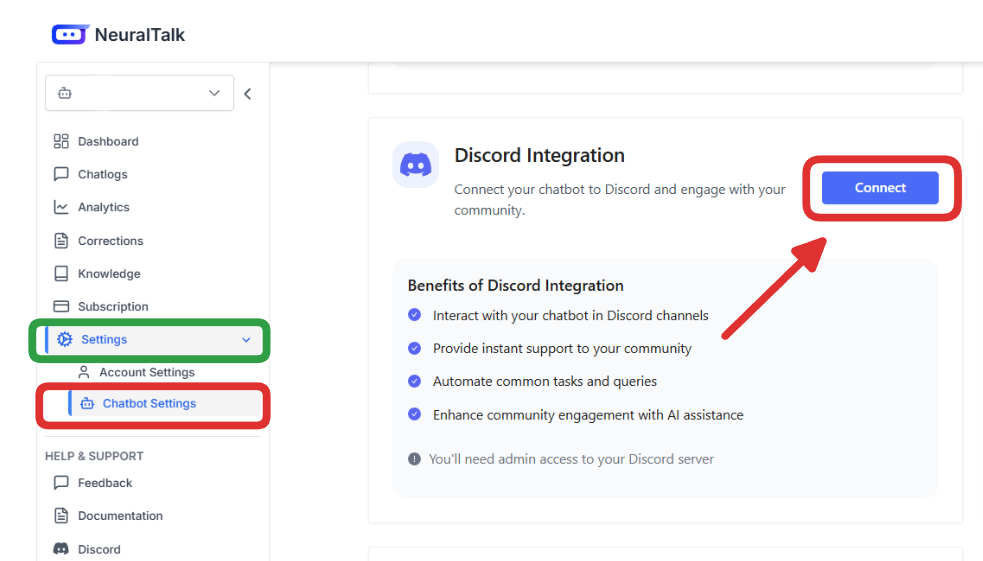
3. Navigate to **Settings** in the left sidebar
4. Click on **Chatbot Settings** from the expanded menu
5. Find the Discord integration card in the integrations section
6. Click the **Connect** button to start the integration process
### Step 2: Authorize Discord Integration
When you click **Connect** in NeuralTalk AI, you'll be redirected to Discord's authorization page:
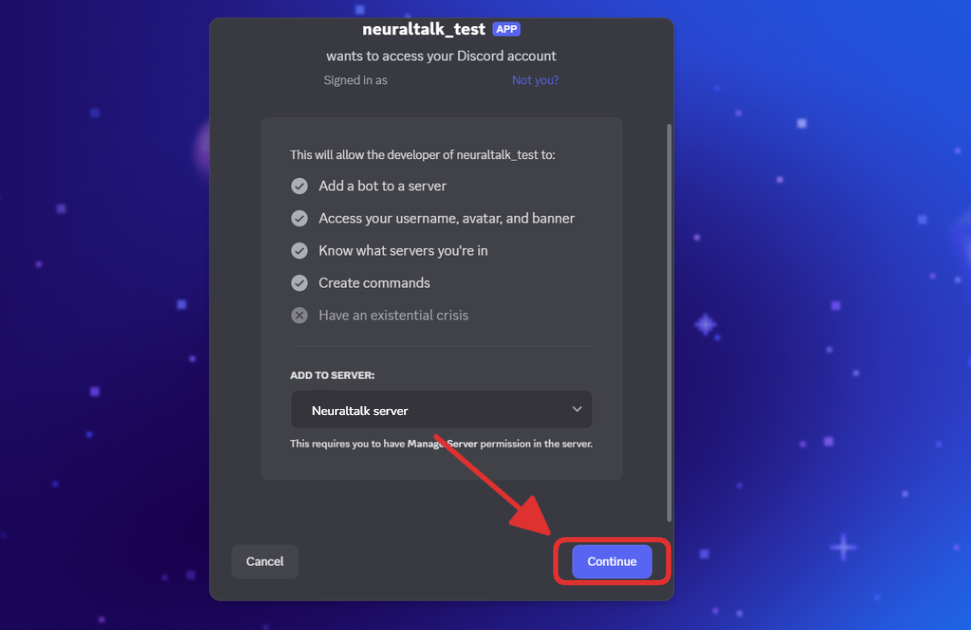
**Review Application Permissions**: You'll see a screen asking for permission to access your Discord account
The application will request permission to:
* Add a bot to a server
* Access your username, avatar, and banner
* Know what servers you're in
* Create commands
* Have an existential crisis (this is a joke permission Discord shows)
1. Select your Discord server from the dropdown menu where you want to add the bot
2. Click **Continue** to proceed to the next authorization step
### Step 3: Grant Bot Permissions
In the next screen, you'll need to authorize specific permissions for your bot:
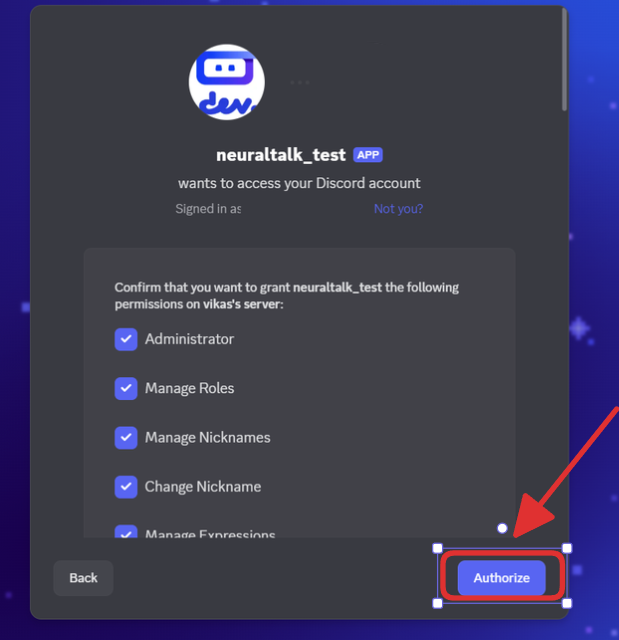
The bot will request the following permissions:
* ✅ **Administrator** (for full server access)
* ✅ **Manage Roles** (to assign roles if needed)
* ✅ **Manage Nicknames** (to change user nicknames)
* ✅ **Change Nickname** (to change the bot's own nickname)
* ✅ **Manage Expressions** (to manage server emojis and stickers)
* And other necessary permissions for proper functioning
1. Review all the permissions listed
2. Click **Authorize** to grant these permissions to your NeuralTalk AI bot
3. Complete any CAPTCHA verification if prompted
### Step 4: Verify Successful Connection
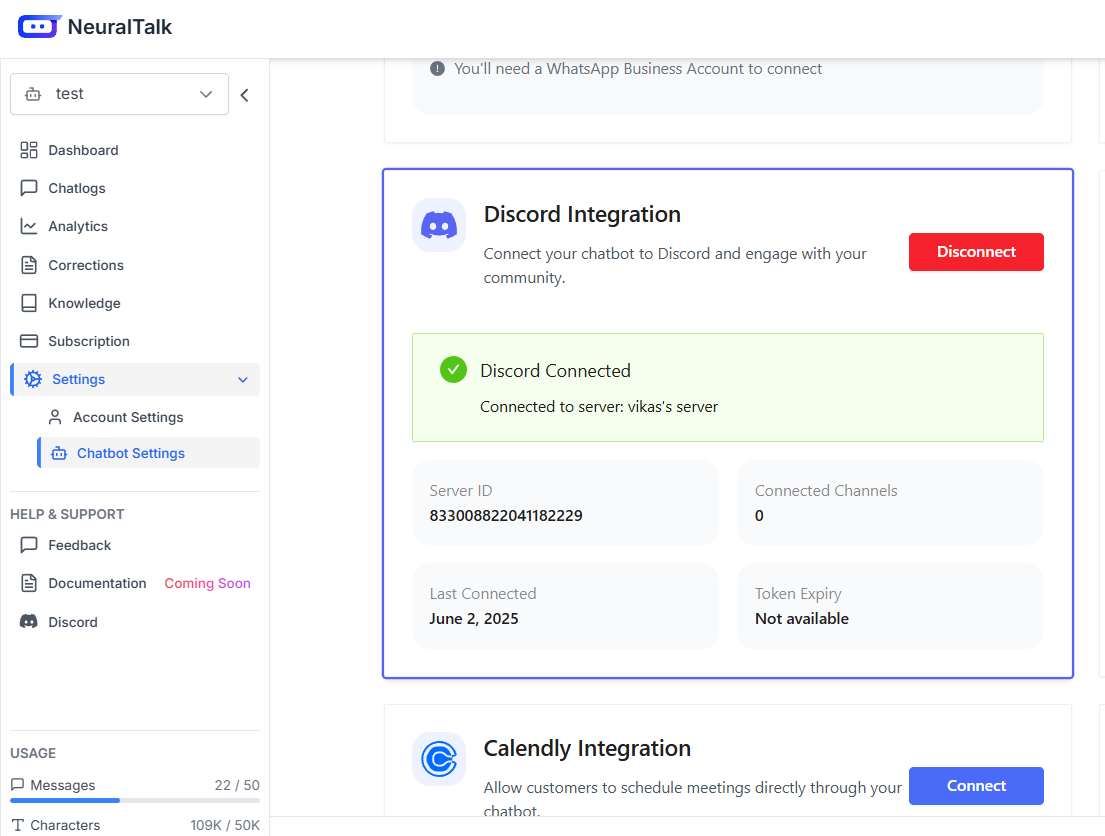
After successful authorization, you'll be redirected back to your NeuralTalk AI dashboard where you should see:
The connection status will show:
* ✅ **Discord Connected**
* **Connected to server**: \[Your server name]
* **Server ID**: Your Discord server ID number
* **Connected Channels**: Number of channels the bot has access to
* **Last Connected**: Date of connection
* **Token Expiry**: Current status of your bot token
You'll also see a red **Disconnect** button if you need to remove the integration later.
## How It Works
Once connected, your NeuralTalk AI Discord bot will:
* **In channels**: Respond when mentioned (@YourBot) or when using configured slash commands
* **In direct messages**: Respond to all messages sent directly to the bot
* **Process messages** through your NeuralTalk AI chatbot backend
* **Use your trained knowledge base** to provide relevant responses
## Usage Examples
### Channel Usage
Users can interact with your bot in a Discord channel by:
* Mentioning the bot with a question (e.g., `@YourBot How do I reset my password?`)
* The bot will respond in the same channel
* Follow-up questions can be asked by mentioning the bot again
### Direct Message Usage
Users can get private assistance by:
* Right-clicking on the bot's name in the server member list
* Selecting "Message"
* Asking questions directly to the bot in the DM channel
* Continuing the conversation naturally without needing to mention the bot
### Slash Commands
If you've configured slash commands, users can:
* Type `/` in any channel where the bot has access
* Select from available commands (e.g., `/help`, `/faq`, etc.)
* Complete any required parameters
* Submit the command to receive a response
💡 **Pro Tip**: Set up custom slash commands for frequently asked questions or specific functions to make your bot more user-friendly.
## Advanced Configuration
### Configuring Slash Commands
To set up custom slash commands:
1. In your NeuralTalk AI dashboard, go to **Settings > Chatbot Settings**
2. Scroll to the Discord integration section
3. Click **Configure** next to your connected Discord integration
4. Navigate to the "Slash Commands" section
5. Click **Add Command** and configure:
* Command name (without the / prefix)
* Description
* Response template or function
### Channel Restrictions
You can limit which channels your bot responds in:
1. Go to **Settings > Chatbot Settings**
2. Find your Discord integration and click **Configure**
3. Navigate to "Channel Settings"
4. Choose between:
* **All Channels**: Bot responds in any channel it has access to
* **Specific Channels**: Select which channels the bot should respond in
5. Save your changes
### Monitoring Performance
Track your Discord integration performance:
1. Navigate to **Analytics** in your dashboard
2. Select the **Channels** or **Messages** tab
3. Filter by Discord integration
4. View metrics such as:
* Number of interactions
* Response time
* Most active channels
* Popular topics
* User satisfaction ratings
## Troubleshooting
### Bot Not Responding
If your bot isn't responding to messages:
* **Check Connection Status**: Ensure the bot shows as "Discord Connected" in your NeuralTalk AI dashboard
* **Verify Bot Status**: Check if the bot appears online in your Discord server
* **Check Permissions**: Ensure the bot has the correct permissions in the server and specific channels
* **Message Content Intent**: Verify that Message Content Intent is enabled in the Discord Developer Portal
* **Re-authorize if needed**: If issues persist, try disconnecting and reconnecting the integration
### Integration Disconnected
If your Discord connection is lost:
1. Go to **Settings > Chatbot Settings**
2. Check if the Discord integration shows "Disconnected"
3. Click **Connect** and go through the authorization process again
4. If issues persist, you may need to reset your Discord bot token and update it
### Permission Issues
If users report the bot cannot perform certain actions:
* Check that the bot has Administrator permissions or the specific permissions it needs
* Ensure the bot's role is positioned high enough in the server's role hierarchy
* Verify channel-specific permissions haven't been restricted
## Best Practices
* **Set Clear Expectations**: Use a bot description or welcome message to help users understand what your bot can help with
* **Monitor Conversations**: Regularly review bot interactions to identify areas for improvement
* **Update Knowledge Base**: Keep your NeuralTalk AI chatbot trained with current information
* **Use Rate Limiting**: Configure appropriate rate limits to prevent spam and abuse
* **Test Thoroughly**: Test the bot in a private channel before making it available server-wide
## Security Considerations
* Always keep your Discord bot token secure
* NeuralTalk AI encrypts your token and all communication with the Discord API
* Consider restricting the bot to specific channels for sensitive communities
* Be mindful of what information your bot is trained to share in public channels
* Regularly review and update bot permissions as needed
## Disconnecting Your Bot
To disconnect your Discord integration from NeuralTalk AI:
1. Go to **Settings > Chatbot Settings**
2. Find the Discord integration card
3. Click the red **Disconnect** button
4. Confirm the disconnection when prompted
This will stop the bot from processing messages but will not remove the bot from your Discord server. To completely remove the bot:
**In Discord**:
1. Go to your Server Settings
2. Navigate to **Members**
3. Find your NeuralTalk AI bot and click **Kick** or **Ban**
**Alternatively**:
1. Right-click on the bot's name in any channel
2. Select **Kick from server**
## Need Help?
If you encounter any issues while setting up or using your Discord integration:
* Check our troubleshooting guide above
* Visit our documentation for more detailed guides
* Contact our support team at [support@neuraltalk.ai](mailto:support@neuraltalk.ai)
* Join our Discord community for peer support and tips
## Next Steps
* [Telegram Integration](/integrations/telegram)
* [Slack Integration](/integrations/slack)
* [WhatsApp Integration](/integrations/whatsapp)
* [HubSpot Integration](/integrations/hubspot)
 5. Find the Discord integration card in the integrations section
6. Click the **Connect** button to start the integration process
### Step 2: Authorize Discord Integration
When you click **Connect** in NeuralTalk AI, you'll be redirected to Discord's authorization page:
5. Find the Discord integration card in the integrations section
6. Click the **Connect** button to start the integration process
### Step 2: Authorize Discord Integration
When you click **Connect** in NeuralTalk AI, you'll be redirected to Discord's authorization page:
 **Review Application Permissions**: You'll see a screen asking for permission to access your Discord account
The application will request permission to:
* Add a bot to a server
* Access your username, avatar, and banner
* Know what servers you're in
* Create commands
* Have an existential crisis (this is a joke permission Discord shows)
1. Select your Discord server from the dropdown menu where you want to add the bot
2. Click **Continue** to proceed to the next authorization step
### Step 3: Grant Bot Permissions
In the next screen, you'll need to authorize specific permissions for your bot:
**Review Application Permissions**: You'll see a screen asking for permission to access your Discord account
The application will request permission to:
* Add a bot to a server
* Access your username, avatar, and banner
* Know what servers you're in
* Create commands
* Have an existential crisis (this is a joke permission Discord shows)
1. Select your Discord server from the dropdown menu where you want to add the bot
2. Click **Continue** to proceed to the next authorization step
### Step 3: Grant Bot Permissions
In the next screen, you'll need to authorize specific permissions for your bot:
 The bot will request the following permissions:
* ✅ **Administrator** (for full server access)
* ✅ **Manage Roles** (to assign roles if needed)
* ✅ **Manage Nicknames** (to change user nicknames)
* ✅ **Change Nickname** (to change the bot's own nickname)
* ✅ **Manage Expressions** (to manage server emojis and stickers)
* And other necessary permissions for proper functioning
1. Review all the permissions listed
2. Click **Authorize** to grant these permissions to your NeuralTalk AI bot
3. Complete any CAPTCHA verification if prompted
### Step 4: Verify Successful Connection
After successful authorization, you'll be redirected back to your NeuralTalk AI dashboard where you should see:
The bot will request the following permissions:
* ✅ **Administrator** (for full server access)
* ✅ **Manage Roles** (to assign roles if needed)
* ✅ **Manage Nicknames** (to change user nicknames)
* ✅ **Change Nickname** (to change the bot's own nickname)
* ✅ **Manage Expressions** (to manage server emojis and stickers)
* And other necessary permissions for proper functioning
1. Review all the permissions listed
2. Click **Authorize** to grant these permissions to your NeuralTalk AI bot
3. Complete any CAPTCHA verification if prompted
### Step 4: Verify Successful Connection
After successful authorization, you'll be redirected back to your NeuralTalk AI dashboard where you should see:
 The connection status will show:
* ✅ **Discord Connected**
* **Connected to server**: \[Your server name]
* **Server ID**: Your Discord server ID number
* **Connected Channels**: Number of channels the bot has access to
* **Last Connected**: Date of connection
* **Token Expiry**: Current status of your bot token
You'll also see a red **Disconnect** button if you need to remove the integration later.
## How It Works
Once connected, your NeuralTalk AI Discord bot will:
* **In channels**: Respond when mentioned (@YourBot) or when using configured slash commands
* **In direct messages**: Respond to all messages sent directly to the bot
* **Process messages** through your NeuralTalk AI chatbot backend
* **Use your trained knowledge base** to provide relevant responses
## Usage Examples
### Channel Usage
Users can interact with your bot in a Discord channel by:
* Mentioning the bot with a question (e.g., `@YourBot How do I reset my password?`)
* The bot will respond in the same channel
* Follow-up questions can be asked by mentioning the bot again
### Direct Message Usage
Users can get private assistance by:
* Right-clicking on the bot's name in the server member list
* Selecting "Message"
* Asking questions directly to the bot in the DM channel
* Continuing the conversation naturally without needing to mention the bot
### Slash Commands
If you've configured slash commands, users can:
* Type `/` in any channel where the bot has access
* Select from available commands (e.g., `/help`, `/faq`, etc.)
* Complete any required parameters
* Submit the command to receive a response
💡 **Pro Tip**: Set up custom slash commands for frequently asked questions or specific functions to make your bot more user-friendly.
## Advanced Configuration
### Configuring Slash Commands
To set up custom slash commands:
1. In your NeuralTalk AI dashboard, go to **Settings > Chatbot Settings**
2. Scroll to the Discord integration section
3. Click **Configure** next to your connected Discord integration
4. Navigate to the "Slash Commands" section
5. Click **Add Command** and configure:
* Command name (without the / prefix)
* Description
* Response template or function
### Channel Restrictions
You can limit which channels your bot responds in:
1. Go to **Settings > Chatbot Settings**
2. Find your Discord integration and click **Configure**
3. Navigate to "Channel Settings"
4. Choose between:
* **All Channels**: Bot responds in any channel it has access to
* **Specific Channels**: Select which channels the bot should respond in
5. Save your changes
### Monitoring Performance
Track your Discord integration performance:
1. Navigate to **Analytics** in your dashboard
2. Select the **Channels** or **Messages** tab
3. Filter by Discord integration
4. View metrics such as:
* Number of interactions
* Response time
* Most active channels
* Popular topics
* User satisfaction ratings
## Troubleshooting
### Bot Not Responding
If your bot isn't responding to messages:
* **Check Connection Status**: Ensure the bot shows as "Discord Connected" in your NeuralTalk AI dashboard
* **Verify Bot Status**: Check if the bot appears online in your Discord server
* **Check Permissions**: Ensure the bot has the correct permissions in the server and specific channels
* **Message Content Intent**: Verify that Message Content Intent is enabled in the Discord Developer Portal
* **Re-authorize if needed**: If issues persist, try disconnecting and reconnecting the integration
### Integration Disconnected
If your Discord connection is lost:
1. Go to **Settings > Chatbot Settings**
2. Check if the Discord integration shows "Disconnected"
3. Click **Connect** and go through the authorization process again
4. If issues persist, you may need to reset your Discord bot token and update it
### Permission Issues
If users report the bot cannot perform certain actions:
* Check that the bot has Administrator permissions or the specific permissions it needs
* Ensure the bot's role is positioned high enough in the server's role hierarchy
* Verify channel-specific permissions haven't been restricted
## Best Practices
* **Set Clear Expectations**: Use a bot description or welcome message to help users understand what your bot can help with
* **Monitor Conversations**: Regularly review bot interactions to identify areas for improvement
* **Update Knowledge Base**: Keep your NeuralTalk AI chatbot trained with current information
* **Use Rate Limiting**: Configure appropriate rate limits to prevent spam and abuse
* **Test Thoroughly**: Test the bot in a private channel before making it available server-wide
## Security Considerations
* Always keep your Discord bot token secure
* NeuralTalk AI encrypts your token and all communication with the Discord API
* Consider restricting the bot to specific channels for sensitive communities
* Be mindful of what information your bot is trained to share in public channels
* Regularly review and update bot permissions as needed
## Disconnecting Your Bot
To disconnect your Discord integration from NeuralTalk AI:
1. Go to **Settings > Chatbot Settings**
2. Find the Discord integration card
3. Click the red **Disconnect** button
4. Confirm the disconnection when prompted
This will stop the bot from processing messages but will not remove the bot from your Discord server. To completely remove the bot:
**In Discord**:
1. Go to your Server Settings
2. Navigate to **Members**
3. Find your NeuralTalk AI bot and click **Kick** or **Ban**
**Alternatively**:
1. Right-click on the bot's name in any channel
2. Select **Kick from server**
## Need Help?
If you encounter any issues while setting up or using your Discord integration:
* Check our troubleshooting guide above
* Visit our documentation for more detailed guides
* Contact our support team at [support@neuraltalk.ai](mailto:support@neuraltalk.ai)
* Join our Discord community for peer support and tips
## Next Steps
* [Telegram Integration](/integrations/telegram)
* [Slack Integration](/integrations/slack)
* [WhatsApp Integration](/integrations/whatsapp)
* [HubSpot Integration](/integrations/hubspot)
The connection status will show:
* ✅ **Discord Connected**
* **Connected to server**: \[Your server name]
* **Server ID**: Your Discord server ID number
* **Connected Channels**: Number of channels the bot has access to
* **Last Connected**: Date of connection
* **Token Expiry**: Current status of your bot token
You'll also see a red **Disconnect** button if you need to remove the integration later.
## How It Works
Once connected, your NeuralTalk AI Discord bot will:
* **In channels**: Respond when mentioned (@YourBot) or when using configured slash commands
* **In direct messages**: Respond to all messages sent directly to the bot
* **Process messages** through your NeuralTalk AI chatbot backend
* **Use your trained knowledge base** to provide relevant responses
## Usage Examples
### Channel Usage
Users can interact with your bot in a Discord channel by:
* Mentioning the bot with a question (e.g., `@YourBot How do I reset my password?`)
* The bot will respond in the same channel
* Follow-up questions can be asked by mentioning the bot again
### Direct Message Usage
Users can get private assistance by:
* Right-clicking on the bot's name in the server member list
* Selecting "Message"
* Asking questions directly to the bot in the DM channel
* Continuing the conversation naturally without needing to mention the bot
### Slash Commands
If you've configured slash commands, users can:
* Type `/` in any channel where the bot has access
* Select from available commands (e.g., `/help`, `/faq`, etc.)
* Complete any required parameters
* Submit the command to receive a response
💡 **Pro Tip**: Set up custom slash commands for frequently asked questions or specific functions to make your bot more user-friendly.
## Advanced Configuration
### Configuring Slash Commands
To set up custom slash commands:
1. In your NeuralTalk AI dashboard, go to **Settings > Chatbot Settings**
2. Scroll to the Discord integration section
3. Click **Configure** next to your connected Discord integration
4. Navigate to the "Slash Commands" section
5. Click **Add Command** and configure:
* Command name (without the / prefix)
* Description
* Response template or function
### Channel Restrictions
You can limit which channels your bot responds in:
1. Go to **Settings > Chatbot Settings**
2. Find your Discord integration and click **Configure**
3. Navigate to "Channel Settings"
4. Choose between:
* **All Channels**: Bot responds in any channel it has access to
* **Specific Channels**: Select which channels the bot should respond in
5. Save your changes
### Monitoring Performance
Track your Discord integration performance:
1. Navigate to **Analytics** in your dashboard
2. Select the **Channels** or **Messages** tab
3. Filter by Discord integration
4. View metrics such as:
* Number of interactions
* Response time
* Most active channels
* Popular topics
* User satisfaction ratings
## Troubleshooting
### Bot Not Responding
If your bot isn't responding to messages:
* **Check Connection Status**: Ensure the bot shows as "Discord Connected" in your NeuralTalk AI dashboard
* **Verify Bot Status**: Check if the bot appears online in your Discord server
* **Check Permissions**: Ensure the bot has the correct permissions in the server and specific channels
* **Message Content Intent**: Verify that Message Content Intent is enabled in the Discord Developer Portal
* **Re-authorize if needed**: If issues persist, try disconnecting and reconnecting the integration
### Integration Disconnected
If your Discord connection is lost:
1. Go to **Settings > Chatbot Settings**
2. Check if the Discord integration shows "Disconnected"
3. Click **Connect** and go through the authorization process again
4. If issues persist, you may need to reset your Discord bot token and update it
### Permission Issues
If users report the bot cannot perform certain actions:
* Check that the bot has Administrator permissions or the specific permissions it needs
* Ensure the bot's role is positioned high enough in the server's role hierarchy
* Verify channel-specific permissions haven't been restricted
## Best Practices
* **Set Clear Expectations**: Use a bot description or welcome message to help users understand what your bot can help with
* **Monitor Conversations**: Regularly review bot interactions to identify areas for improvement
* **Update Knowledge Base**: Keep your NeuralTalk AI chatbot trained with current information
* **Use Rate Limiting**: Configure appropriate rate limits to prevent spam and abuse
* **Test Thoroughly**: Test the bot in a private channel before making it available server-wide
## Security Considerations
* Always keep your Discord bot token secure
* NeuralTalk AI encrypts your token and all communication with the Discord API
* Consider restricting the bot to specific channels for sensitive communities
* Be mindful of what information your bot is trained to share in public channels
* Regularly review and update bot permissions as needed
## Disconnecting Your Bot
To disconnect your Discord integration from NeuralTalk AI:
1. Go to **Settings > Chatbot Settings**
2. Find the Discord integration card
3. Click the red **Disconnect** button
4. Confirm the disconnection when prompted
This will stop the bot from processing messages but will not remove the bot from your Discord server. To completely remove the bot:
**In Discord**:
1. Go to your Server Settings
2. Navigate to **Members**
3. Find your NeuralTalk AI bot and click **Kick** or **Ban**
**Alternatively**:
1. Right-click on the bot's name in any channel
2. Select **Kick from server**
## Need Help?
If you encounter any issues while setting up or using your Discord integration:
* Check our troubleshooting guide above
* Visit our documentation for more detailed guides
* Contact our support team at [support@neuraltalk.ai](mailto:support@neuraltalk.ai)
* Join our Discord community for peer support and tips
## Next Steps
* [Telegram Integration](/integrations/telegram)
* [Slack Integration](/integrations/slack)
* [WhatsApp Integration](/integrations/whatsapp)
* [HubSpot Integration](/integrations/hubspot)