> ## Documentation Index
> Fetch the complete documentation index at: https://docs.neuraltalk.ai/llms.txt
> Use this file to discover all available pages before exploring further.
# 📚 Knowledge Sources
> Complete guide to manage and configure knowledge sources for your chatbot
🎥 Refer to the setup video for a step-by-step visual guide:
## Overview
The **Knowledge Sources** feature allows you to connect external content to your chatbot so it can deliver accurate, contextual, and up-to-date responses. You can add URLs, documents, images, and third-party integrations as sources of knowledge.
This guide explains how to add sources, configure recrawling, and manage indexed URLs.
## Accessing Knowledge Sources
* Log in to your dashboard
* Navigate to **Data Source** from the main menu
* Click on **Knowledge** in the left sidebar
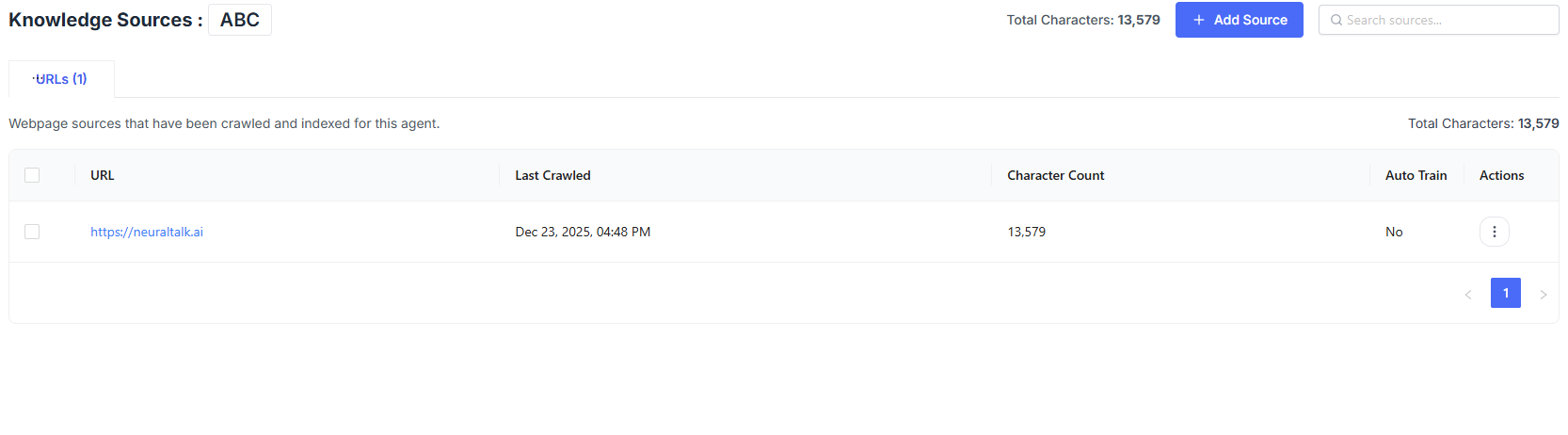
* The Knowledge page loads with Webpage sources that have been crawled and indexed for your chatbot
* If no sources are added, you’ll see **No data sources found for this chatbot**
## Adding a Knowledge Source
Click **Add Source** to begin adding content to your chatbot.
Add public webpages to train your chatbot using live website content.
Upload PDFs, text documents, or images as knowledge sources.
Connect files directly from your Google Drive.
Sync selected Notion pages as structured knowledge.
## URL Configuration
When adding a URL source, you must configure how content is crawled.
* **URL**: Required
* **Scope Options**: This page only, Entire site, Subdirectory only, Sitemap
### Auto-Recrawl Settings
* Keeps your sources up to date
* Sources are refreshed on a regular schedule
Ensures your chatbot always responds using the latest content from your website.
Once added, your URLs are crawled and indexed for the chatbot.
In the **Actions** column, you have the following options:
* **Edit**: Open **Edit URL Settings** to manage source behavior.
* **Auto-Recrawl**: Enable automatic recrawling of this source on a schedule.
* **Cancel**: Discard changes.
* **Save**: Apply the updated settings.
* **Recrawl**: Re-index the URL to fetch the latest content.
* **Delete**: Remove the URL and all associated data from the chatbot.
## Best Practices
* Add high-quality, relevant sources for better answers
* Enable auto-recrawl for frequently updated websites
* Remove outdated or low-value sources
* Monitor total character usage regularly
 ## Adding a Knowledge Source
Click **Add Source** to begin adding content to your chatbot.
## Adding a Knowledge Source
Click **Add Source** to begin adding content to your chatbot.