> ## Documentation Index
> Fetch the complete documentation index at: https://docs.neuraltalk.ai/llms.txt
> Use this file to discover all available pages before exploring further.
# 🛠️ Corrections
> Complete guide to review, create, and manage chatbot response corrections
🎥 Refer to the setup video for a step-by-step visual guide:
## Overview
The **Corrections** feature allows you to review, fix, and improve chatbot responses. It ensures your chatbot gives accurate, friendly, and high-quality answers by letting you approve, reject, or refine responses raised during conversations.
This guide explains correction statuses, actions, and how to create and manage corrections.
## Accessing Corrections
* Log in to your dashboard
* Navigate to **Data Source** from the main menu
* Click on **Corrections** in the left sidebar
* Switch between **Pending**, **Corrected**, and **Rejected** tabs
* See total pages and results per page
## Corrections Dashboard
The Corrections page is divided into multiple tabs for better management.
### Correction Tabs
* **Pending**: Corrections awaiting review
* **Corrected**: Approved and applied corrections
* **Rejected**: Corrections that were dismissed
## Actions Menu
The **Actions** dropdown provides bulk and management options.
* **Create Correction**: Manually add a correction to improve chatbot answers.
* **Export Approved Corrections**: Download all corrected entries.
* **Export Pending Corrections**: Export pending corrections for review.
* **Mark Selected as Corrected**: Approve the selected corrections.
* **Mark Selected as Rejected**: Reject the selected corrections.
* **Import Corrections**: Upload multiple corrections in bulk.
* **Download Template**: Download a template for bulk correction import.
## Creating a Correction
Click **Create Correction** to manually add or fix a chatbot response.
### Correction Form Fields
* **Question**: Enter the user question that needs correction.
* **Original Chatbot Answer**: Displays the response originally given by the chatbot.
* **Model Answer**: Write the correct answer to the question raised.
### Answer Enhancement Options
* **More Friendly & Detailed**: Improves tone and clarity
* **Enhance with AI**: Automatically refines your answer
### Optional Fields
* **Source URL**: Add a reference link
* **Image URL**: Attach an image
* **Extra Info**: Additional instructions like tone or style
* **Tags**: Add tags for easy filtering
## Best Practices
* Review pending corrections regularly
* Use friendly, clear, and accurate model answers
* Add sources for credibility
* Tag corrections for easier management
* Export data for audits or training purposes
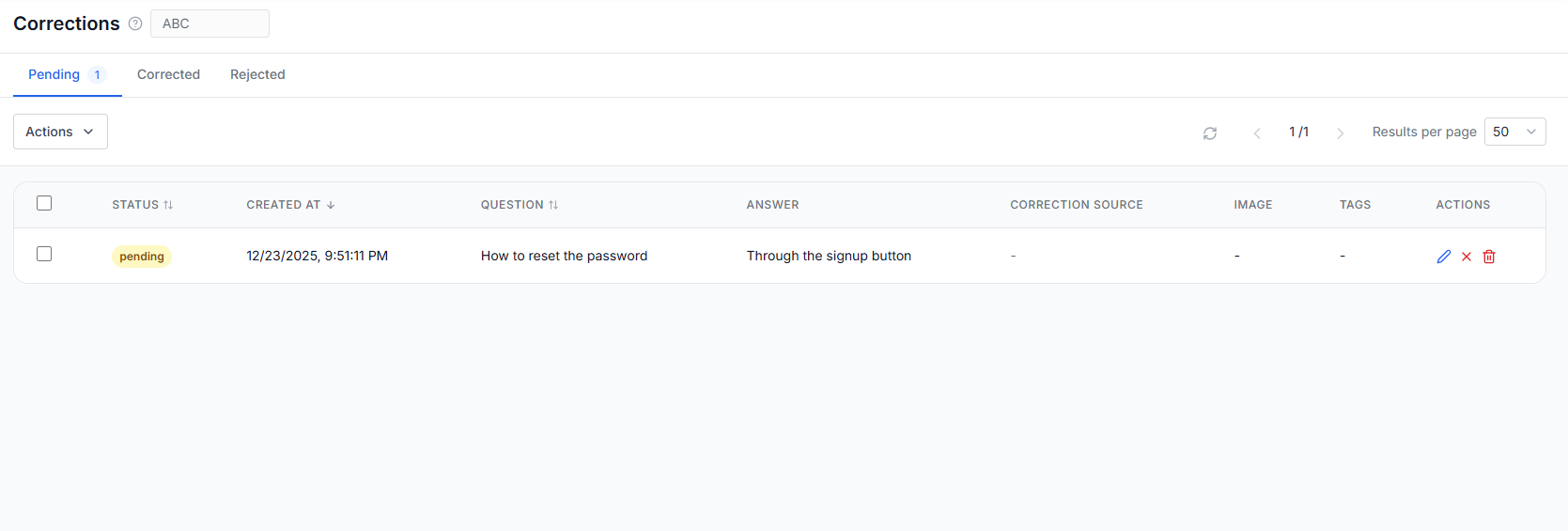 ## Corrections Dashboard
The Corrections page is divided into multiple tabs for better management.
### Correction Tabs
* **Pending**: Corrections awaiting review
* **Corrected**: Approved and applied corrections
* **Rejected**: Corrections that were dismissed
## Actions Menu
The **Actions** dropdown provides bulk and management options.
* **Create Correction**: Manually add a correction to improve chatbot answers.
* **Export Approved Corrections**: Download all corrected entries.
* **Export Pending Corrections**: Export pending corrections for review.
* **Mark Selected as Corrected**: Approve the selected corrections.
* **Mark Selected as Rejected**: Reject the selected corrections.
* **Import Corrections**: Upload multiple corrections in bulk.
* **Download Template**: Download a template for bulk correction import.
## Creating a Correction
Click **Create Correction** to manually add or fix a chatbot response.
### Correction Form Fields
* **Question**: Enter the user question that needs correction.
* **Original Chatbot Answer**: Displays the response originally given by the chatbot.
* **Model Answer**: Write the correct answer to the question raised.
### Answer Enhancement Options
* **More Friendly & Detailed**: Improves tone and clarity
* **Enhance with AI**: Automatically refines your answer
### Optional Fields
* **Source URL**: Add a reference link
* **Image URL**: Attach an image
* **Extra Info**: Additional instructions like tone or style
* **Tags**: Add tags for easy filtering
## Best Practices
* Review pending corrections regularly
* Use friendly, clear, and accurate model answers
* Add sources for credibility
* Tag corrections for easier management
* Export data for audits or training purposes
## Corrections Dashboard
The Corrections page is divided into multiple tabs for better management.
### Correction Tabs
* **Pending**: Corrections awaiting review
* **Corrected**: Approved and applied corrections
* **Rejected**: Corrections that were dismissed
## Actions Menu
The **Actions** dropdown provides bulk and management options.
* **Create Correction**: Manually add a correction to improve chatbot answers.
* **Export Approved Corrections**: Download all corrected entries.
* **Export Pending Corrections**: Export pending corrections for review.
* **Mark Selected as Corrected**: Approve the selected corrections.
* **Mark Selected as Rejected**: Reject the selected corrections.
* **Import Corrections**: Upload multiple corrections in bulk.
* **Download Template**: Download a template for bulk correction import.
## Creating a Correction
Click **Create Correction** to manually add or fix a chatbot response.
### Correction Form Fields
* **Question**: Enter the user question that needs correction.
* **Original Chatbot Answer**: Displays the response originally given by the chatbot.
* **Model Answer**: Write the correct answer to the question raised.
### Answer Enhancement Options
* **More Friendly & Detailed**: Improves tone and clarity
* **Enhance with AI**: Automatically refines your answer
### Optional Fields
* **Source URL**: Add a reference link
* **Image URL**: Attach an image
* **Extra Info**: Additional instructions like tone or style
* **Tags**: Add tags for easy filtering
## Best Practices
* Review pending corrections regularly
* Use friendly, clear, and accurate model answers
* Add sources for credibility
* Tag corrections for easier management
* Export data for audits or training purposes