> ## Documentation Index
> Fetch the complete documentation index at: https://docs.neuraltalk.ai/llms.txt
> Use this file to discover all available pages before exploring further.
# 🔌 Plugin & Deploy
> Complete guide to Install your chatbot as a widget popup, iframe embed, or integrate with popular platforms.
🎥 Refer to the setup video for a step-by-step visual guide:
## Overview
The **Plugin & Design** feature allows you to install and customize your chatbot on your website or platform. You can integrate it as a popup widget, iframe, or use platform-specific instructions for Webflow, Wix, Framer, WordPress, and Shopify. This guide explains installation, embedding, and design best practices.
## Accessing Plugin & Design settings
* Log in to your NeuralTalk AI dashboard
* Select the chatbot you want to connect
* Navigate to **Addons and Design** from the main menu
* Click on **Plugin & Design**
* Select between **Popup Widget** or **Iframe Embed**
* Follow platform-specific instructions if needed
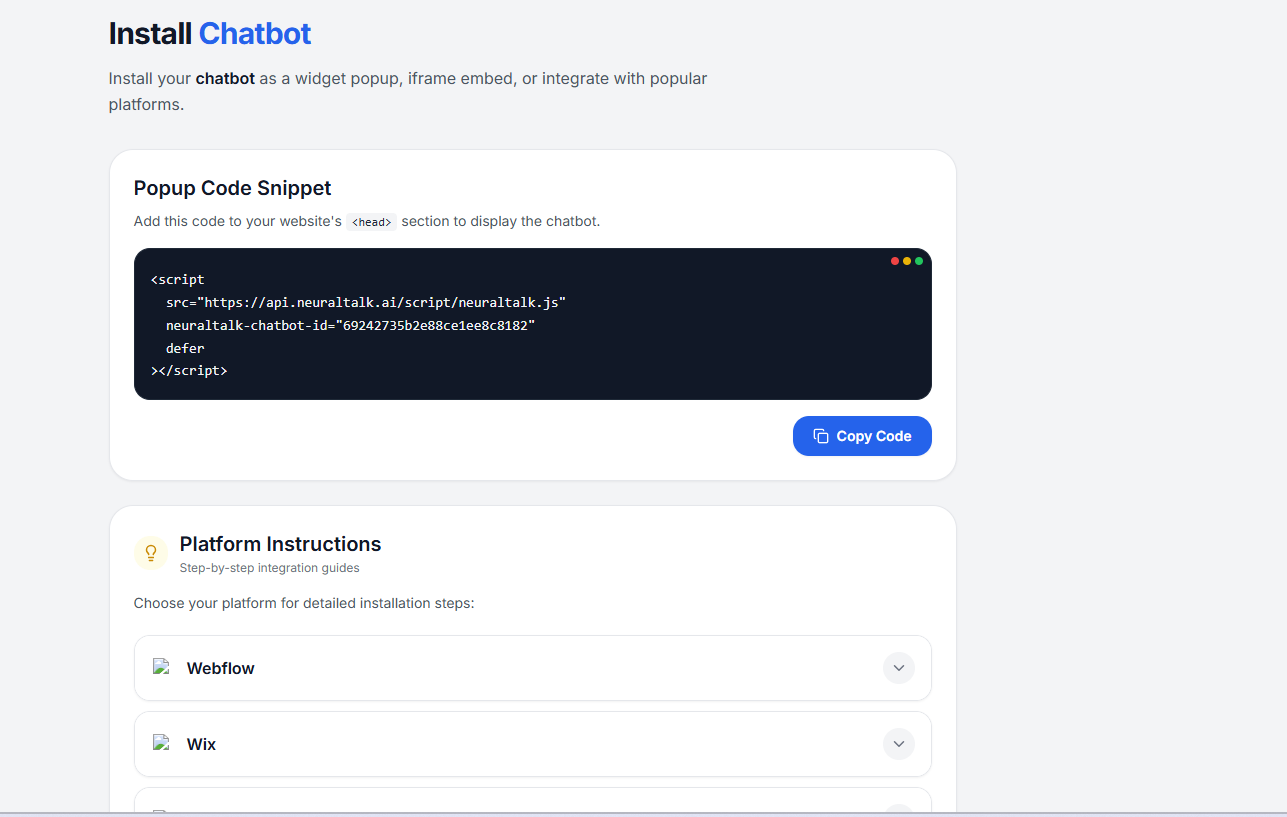
## Install Chatbot
* Copy the following code snippet
* Paste it inside your website's `` section
```html theme={null}
```
* Open your website in a browser
* The chatbot popup should appear and be interactive
## Platform Integrations
The following platform integrations are available:
* **Webflow**
* **Wix**
* **Framer**
* **WordPress**
* **Shopify**
* **HubSpot**
* **Zendesk**
Each integration can be connected independently based on your business needs.
## Best Practices
* Ensure the chatbot is visible but non-intrusive
* Test on desktop and mobile for responsiveness
* Match chatbot theme and colors to your website design
* Follow platform-specific steps for optimal integration
 ## Install Chatbot