> ## Documentation Index
> Fetch the complete documentation index at: https://docs.neuraltalk.ai/llms.txt
> Use this file to discover all available pages before exploring further.
# 🛠️ Custom Tools
> Complete guide to create and manage custom API tools for your chatbot
🎥 Refer to the setup video for a step-by-step visual guide:
## Overview
The **Custom Tools** feature allows you to create and manage API-based tools that extend your chatbot's functionality. With custom tools, your chatbot can interact with external services, fetch data from APIs, and perform advanced operations beyond built-in capabilities.
This guide explains how to create a custom tool, manage existing tools, and choose the right creation method for your use case.
## Accessing Custom Tools
* Log in to your NeuralTalk AI dashboard
* Select the chatbot you want to connect
* Navigate to **Addons and Design** from the main menu
* Click on **Custom Tools**
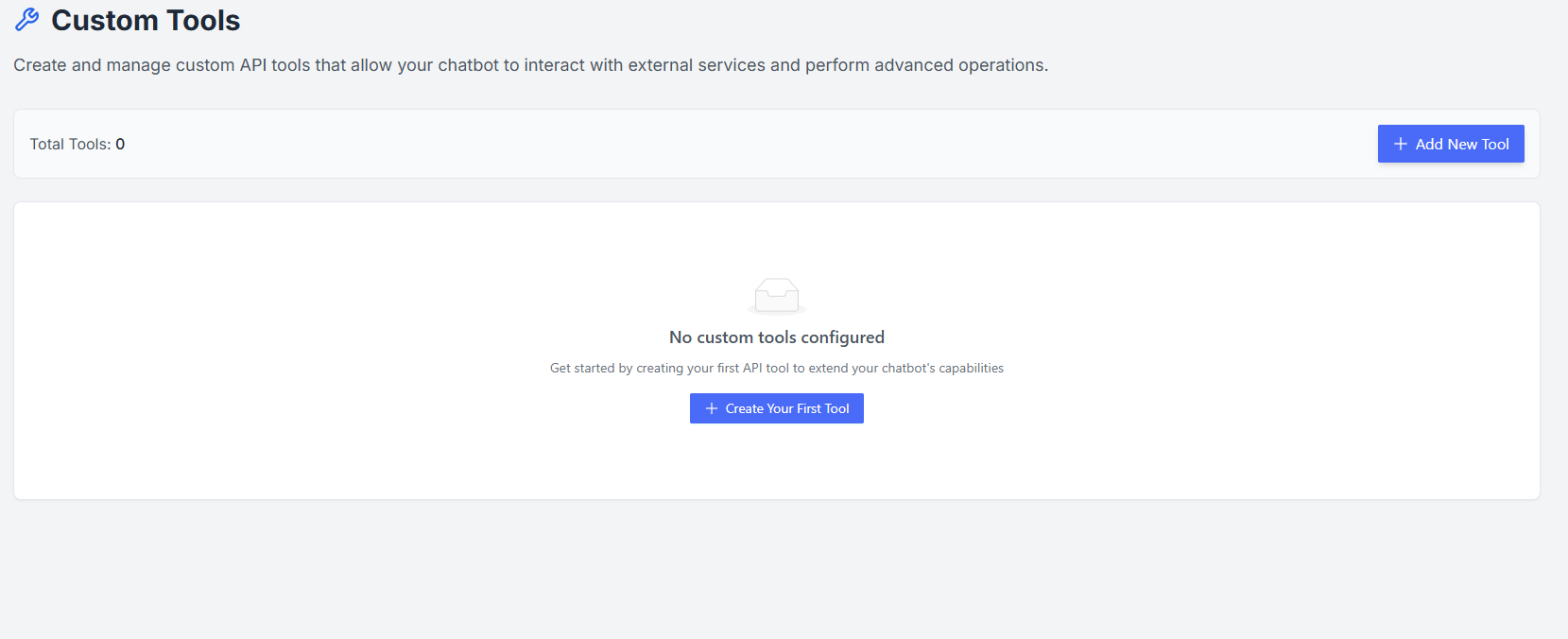
* The Custom Tools page displays all configured tools
* You can see the total number of tools and manage existing ones
* If no tools are configured, the page will prompt you to create your first tool
## Creating a New Custom Tool
Click **Create New API Tool** to start adding a custom tool. You can choose from three creation methods:
* **Manual Filling**\
Fill out a form step by step with all API details including endpoint, parameters, headers, and authentication.
* **cURL Parser**\
Paste your cURL command, and the system automatically extracts all API configuration details for you.
* **AI Generation (Beta)**\
Describe your API in natural language, and AI will generate the tool configuration automatically.
For each method, guidance and examples are provided to make tool creation fast and accurate.
### Managing Tools
Once a tool is created:
* A **Edit** button becomes available for editing and configuring the tool
* Tools can be **disabled** or **deleted** at any time without affecting other tools
* You can test your tool directly from the dashboard to ensure correct functionality
## Best Practices
* Start by creating a single tool and testing it thoroughly
* Use AI Generation or cURL Parser for faster setup when available
* Keep your API keys and credentials secure
* Provide clear naming and descriptions for each tool to avoid confusion
 ## Creating a New Custom Tool
Click **Create New API Tool** to start adding a custom tool. You can choose from three creation methods:
* **Manual Filling**\
Fill out a form step by step with all API details including endpoint, parameters, headers, and authentication.
* **cURL Parser**\
Paste your cURL command, and the system automatically extracts all API configuration details for you.
* **AI Generation (Beta)**\
Describe your API in natural language, and AI will generate the tool configuration automatically.
For each method, guidance and examples are provided to make tool creation fast and accurate.
### Managing Tools
Once a tool is created:
* A **Edit** button becomes available for editing and configuring the tool
* Tools can be **disabled** or **deleted** at any time without affecting other tools
* You can test your tool directly from the dashboard to ensure correct functionality
## Best Practices
* Start by creating a single tool and testing it thoroughly
* Use AI Generation or cURL Parser for faster setup when available
* Keep your API keys and credentials secure
* Provide clear naming and descriptions for each tool to avoid confusion
## Creating a New Custom Tool
Click **Create New API Tool** to start adding a custom tool. You can choose from three creation methods:
* **Manual Filling**\
Fill out a form step by step with all API details including endpoint, parameters, headers, and authentication.
* **cURL Parser**\
Paste your cURL command, and the system automatically extracts all API configuration details for you.
* **AI Generation (Beta)**\
Describe your API in natural language, and AI will generate the tool configuration automatically.
For each method, guidance and examples are provided to make tool creation fast and accurate.
### Managing Tools
Once a tool is created:
* A **Edit** button becomes available for editing and configuring the tool
* Tools can be **disabled** or **deleted** at any time without affecting other tools
* You can test your tool directly from the dashboard to ensure correct functionality
## Best Practices
* Start by creating a single tool and testing it thoroughly
* Use AI Generation or cURL Parser for faster setup when available
* Keep your API keys and credentials secure
* Provide clear naming and descriptions for each tool to avoid confusion